




Mac and VPN work well together: macOS supports VPN connections natively, and a good provider adds encryption that stops your ISP, advertisers and eavesdroppers on public networks from reading your traffic. The right choice depends on a native Mac app, a verifiable no-logs policy, a kill switch and sensible pricing.
Apple builds VPN support into the operating system, but the system itself does not supply a VPN service. You still need a provider you trust, and that choice deserves more scrutiny than the price tag or the length of the server list. Below you will find the criteria that separate a dependable Mac VPN from a weak one, the way macOS handles VPN connections, and a list of options to evaluate.
Should you use a VPN on a Mac?
Yes, if you want to keep your ISP, advertisers and anyone on a shared network from observing your browsing. A Mac's built-in security protects the device, but it does not encrypt your traffic in transit or hide your IP address from the sites you visit.
A VPN closes that gap. Your traffic is encrypted before it leaves your laptop, so a café hotspot operator or a network eavesdropper sees only scrambled data. Your ISP sees a connection to a VPN server rather than a list of the sites you visit. For a deeper look at what a VPN does, read this explanation of what a VPN is and why you need one in 2026.
A VPN does not make you anonymous on its own. Logging into accounts, browser fingerprinting and cookies still identify you. It reduces one category of tracking, which is network-level observation, and it does that well when the provider is trustworthy.
Does Mac have a built-in VPN?
Mac has built-in VPN client support, but not a built-in VPN service. According to Apple Support, macOS includes support for L2TP, IKEv2 and IPSec VPN connections, which you can configure in System Settings.
In practice, that means macOS can connect to a VPN server, but you must bring the server and the credentials. Apple also advises users to use only a VPN service they trust, which is sound advice, since a VPN provider can see more of your traffic than your ISP would.
To configure a connection manually, Apple's setup instructions point to System Settings > Network > Action menu > Add VPN Configuration. You then enter the VPN type, server address, account name and authentication settings from your provider, and select Create. If your provider supplies a configuration file, you can double-click it instead.
Manual setup has limits. It will not give you a kill switch, split tunnelling or server switching in one click. A dedicated app handles those features, which is why many Mac users prefer one.
What to look for in a Mac VPN
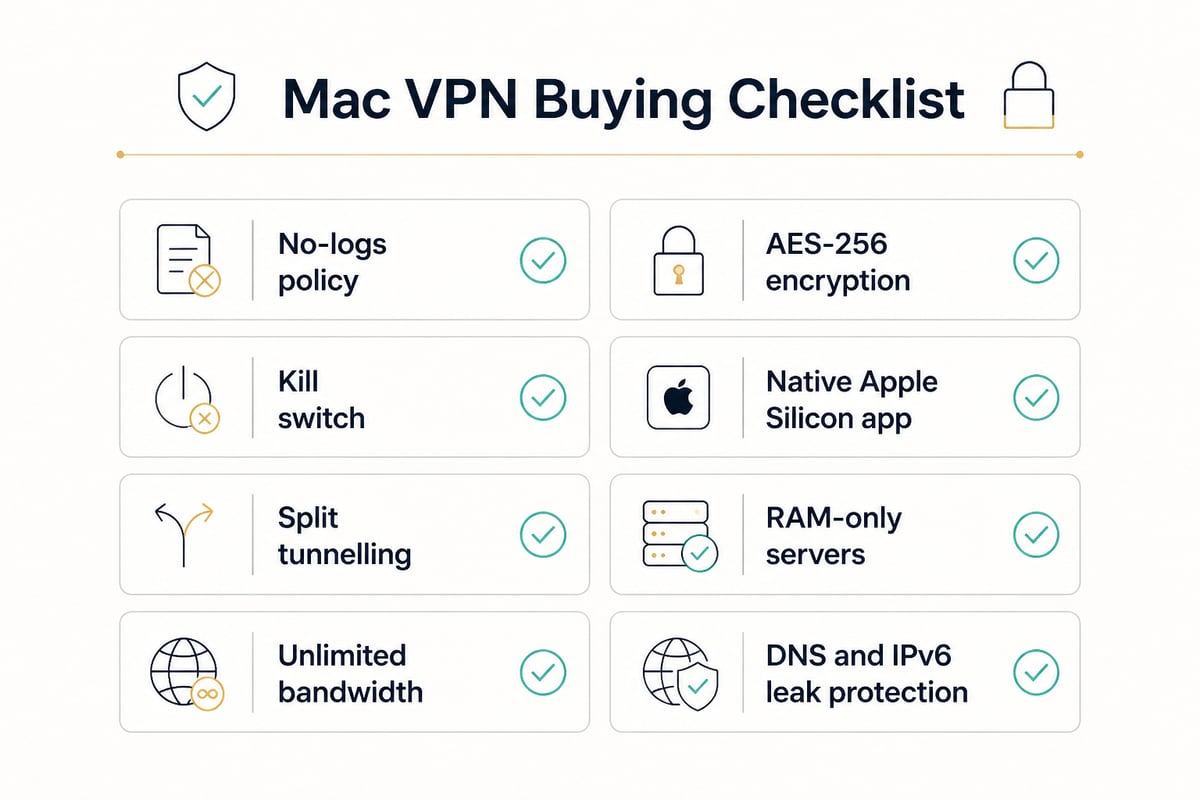
A strong Mac VPN combines verifiable privacy practices, modern encryption, Apple Silicon compatibility and features that protect you when the connection drops. Use this checklist before you subscribe.
- A clear no-logs policy. The provider should state that it does not store browsing activity, DNS queries, connection timestamps or IP addresses.
- Strong encryption. AES-256 is the standard to look for.
- A kill switch. If the tunnel fails, traffic should stop rather than fall back to your regular connection.
- A native macOS app. Check that it supports Apple Silicon (M-series) Macs and current macOS versions.
- Split tunnelling. This lets you send only chosen apps through the VPN, which helps when you need a local service and a protected one at the same time.
- RAM-only servers. Servers that run from memory and wipe on reboot leave no data on disk to seize.
- Unmetered bandwidth. Data caps defeat the purpose of an always-on VPN.
- Leak protection. DNS and IPv6 leaks expose browsing even when the tunnel appears active.
Battery and speed also matter on a laptop. A lightweight protocol and a nearby server help keep the performance cost low. You can learn how to measure it in this guide to a VPN bandwidth test.
How to set up a VPN on your Mac
Setting up a VPN on a Mac usually takes only a few minutes, either through a provider's app or through macOS network settings. The app route is simpler and adds protective features.
- Choose a provider with a macOS app and create an account.
- Download and install the app, then approve the VPN configuration prompt macOS displays.
- Sign in and connect to a server, ideally one geographically close for better speed.
- Enable the kill switch in the app settings before you start browsing.
- Verify the connection by checking your visible IP address on an IP lookup site.
For the manual route, open System Settings > Network, use the Action menu to add a VPN configuration and enter your provider's details. For L2TP over IPSec, Apple documents extra options for Options, TCP/IP, DNS and Proxies. Once configured, Apple notes that you manage the connection under System Settings > VPN, where settings vary by the selected VPN service.
Why can't I use a VPN on my Mac?
When a VPN will not work on a Mac, the cause is usually an unapproved configuration prompt, a conflicting profile, a blocked protocol or an outdated app. Work through these checks in order:
- Approve the system prompt. macOS asks permission to add VPN configurations. If you dismissed it, remove the VPN in System Settings > VPN and reinstall the app.
- Update macOS and the app. Older builds can fail on newer macOS releases.
- Disable a second VPN or security tool. Two tunnels, or a firewall tool, can conflict.
- Switch protocol or port. Some networks block common VPN ports. See this overview of VPN protocols and ports for alternatives.
- Try another server. A single overloaded server can refuse connections while others work.
If none of this helps, contact the provider's support with your macOS version and the exact error message.
Best VPNs for Mac: options to evaluate in 2026
The three services below cover different needs on a Mac, from a free tier to a simple app to an annual-plan paid service. Prices are approximate as of November 2026, and only details confirmed in the research appear here.
1. Windscribe Free
Windscribe Free is a free VPN tier that suits a Mac user who wants to try a VPN at no cost and choose a specific country. Its key specs are a free plan and country selection. It suits light, occasional use, such as protecting a session on public Wi-Fi, rather than an always-on setup. Free plans often carry restrictions, so check the current limits on the provider's site. Verdict: a reasonable starting point for casual testing, not a long-term privacy tool. For more on that trade-off, see this comparison of paid VPNs versus free ones.
2. IPVanish
IPVanish is a paid VPN with a macOS app and wide server coverage, which suits newcomers who want a simple interface. Key specs include more than 2,400 servers in 109 countries and an Optimal Location connection feature that picks a server for you. Check the provider's site for current pricing. It suits casual users who prefer one-click connection over manual tuning. Verdict: a straightforward Mac app with broad reach, good for first-time VPN users.
3. ZioFree VPN 12 Months
ZioFree VPN 12 Months is a 12-month subscription at $3.60 per month with a no-logs policy, which suits privacy-conscious users who plan to keep a VPN running long term. Key specs:
- AES-256 encryption for all VPN traffic
- Automatic kill switch
- Split tunnelling for selected apps
- RAM-only servers, wiped on reboot
- Unlimited bandwidth and access to all servers
One limit matters for Mac users: the ZioFree macOS app is still in development. If you need a Mac VPN today, choose another option for now and revisit ZioFree once the app launches. You can review the plan at ZioFree VPN 12 Months. Verdict: strong privacy design and low annual pricing, but not yet ready for macOS.
A monthly plan also exists at $5.83 per month, with the same features and no long commitment.
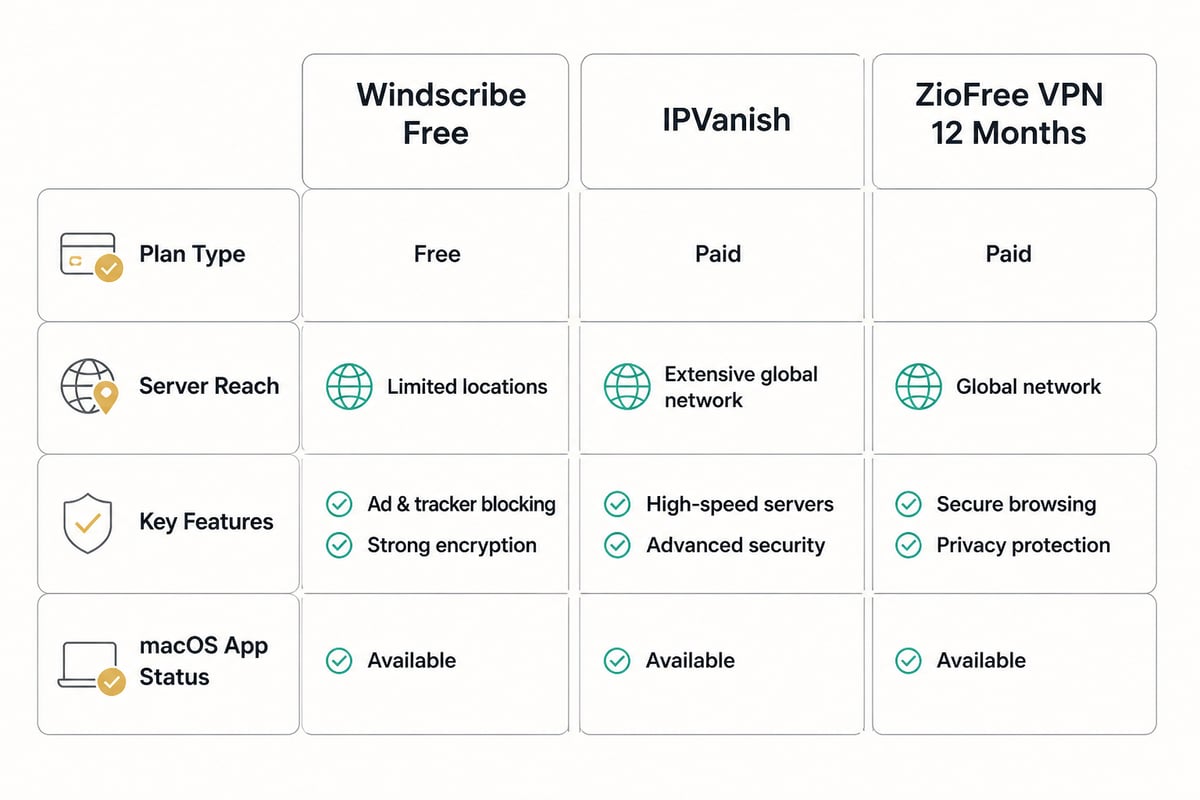
Mac VPN options compared
| Option | Plan type | Server reach | Notable features | Mac app status |
|---|---|---|---|---|
| Windscribe Free | Free | Country selection | Choose a country | Check provider |
| IPVanish | Paid | 2,400+ servers, 109 countries | Optimal Location | macOS app available |
| ZioFree VPN 12 Months | Paid, $3.60/month | All servers included | AES-256, kill switch, split tunnelling, RAM-only servers | In development |
Does VPN work on Mac with Apple Silicon and recent macOS?
Yes, VPNs work on Macs, including Apple Silicon models, provided the provider ships an app built for current macOS. Check the provider's system requirements page for the minimum macOS version and for native M-series support before you pay. Native builds generally use less battery than apps running through compatibility layers, which matters on a MacBook away from a charger.
Also review how a VPN fits the rest of your setup. If you protect several devices, a router-level connection can cover them at once, as explained in this guide to VPNs and home networks.

Habits that make a Mac VPN more effective
A VPN works best when paired with a few settings and habits that close the gaps it leaves open.
- Turn on the kill switch and enable auto-connect on untrusted networks.
- Use split tunnelling carefully. Apps outside the tunnel are visible to your ISP.
- Keep macOS and the VPN app updated. Security fixes arrive through updates.
- Pair the VPN with browser privacy settings. Cookies and logins still identify you.
- Reconnect after sleep and confirm the connection before sensitive tasks.
FAQ
Do I need a VPN if I already use a Mac?
A Mac protects the device itself, but it does not hide your traffic from your ISP or from people on a shared network. A VPN adds that layer. If you value private browsing, it remains a useful addition.
Does a VPN slow down a Mac?
A VPN adds some overhead because traffic is encrypted and routed through another server. A nearby server and a lightweight protocol can keep the difference small for everyday browsing.
Is a free VPN safe for a Mac?
Free services vary widely, and some fund themselves through limits or data practices. Read the privacy policy closely, and consider why a paid VPN versus free one may suit long-term privacy better.
Start by checking your macOS version and confirming that any VPN you shortlist ships a native app for it, then test the kill switch before relying on it. When the ZioFree macOS app is released, the ZioFree VPN 12 Months plan will be worth a look for its no-logs policy, RAM-only servers and AES-256 encryption. Until then, you can review ZioFree's plans for your other devices.