



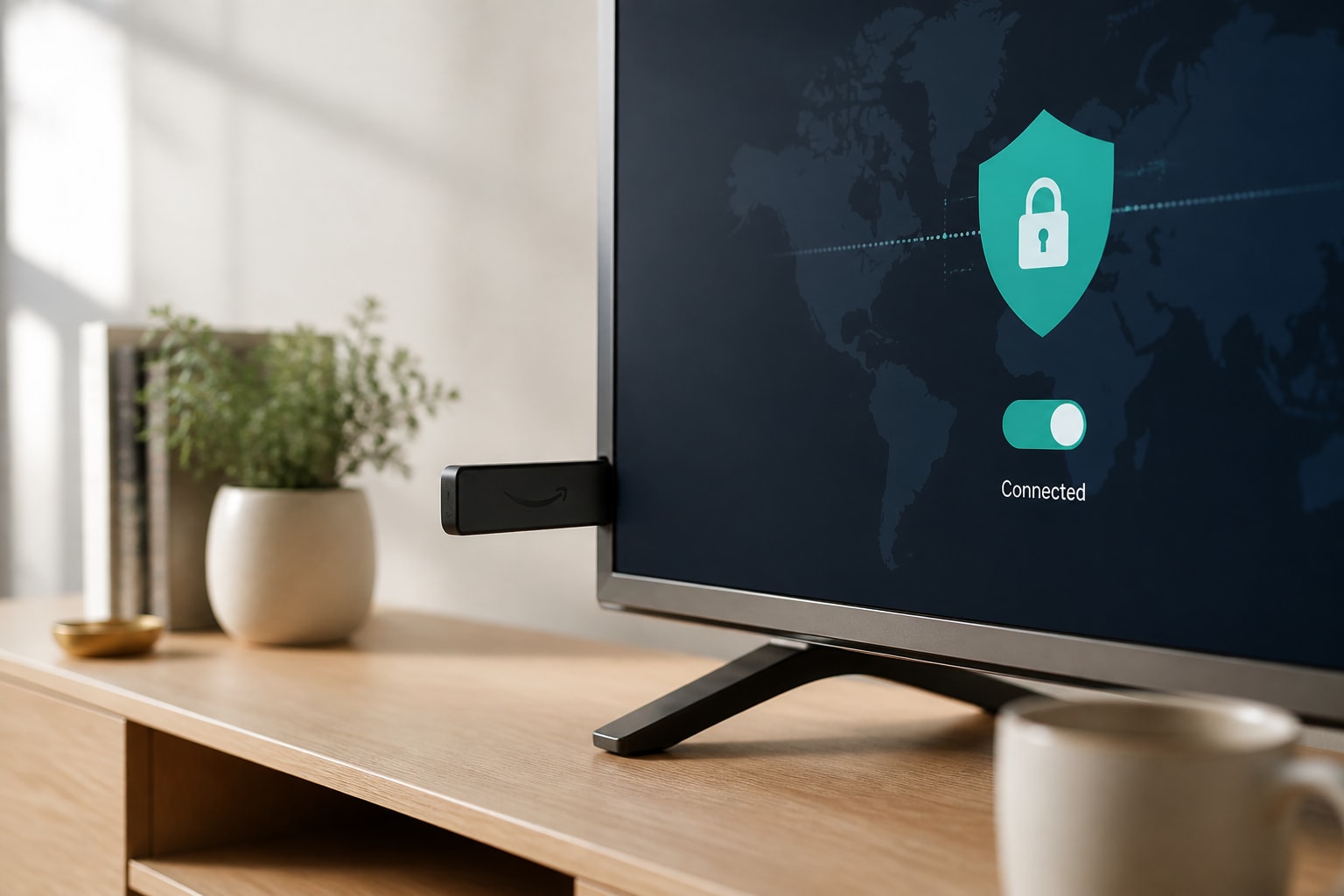
To set up a VPN on Amazon Fire TV Stick, install a VPN app from the Amazon Appstore, sign in, choose a server, and approve the connection prompt that Fire OS displays. The process usually takes only a few minutes, and it stops your internet provider, advertisers, and anyone on your network from seeing which apps and sites your device contacts.
This guide walks through the steps in order, from checking device compatibility to confirming that your traffic is actually protected, with fixes for the problems that appear most often.
Why Should You Use a VPN on a Fire TV Stick?
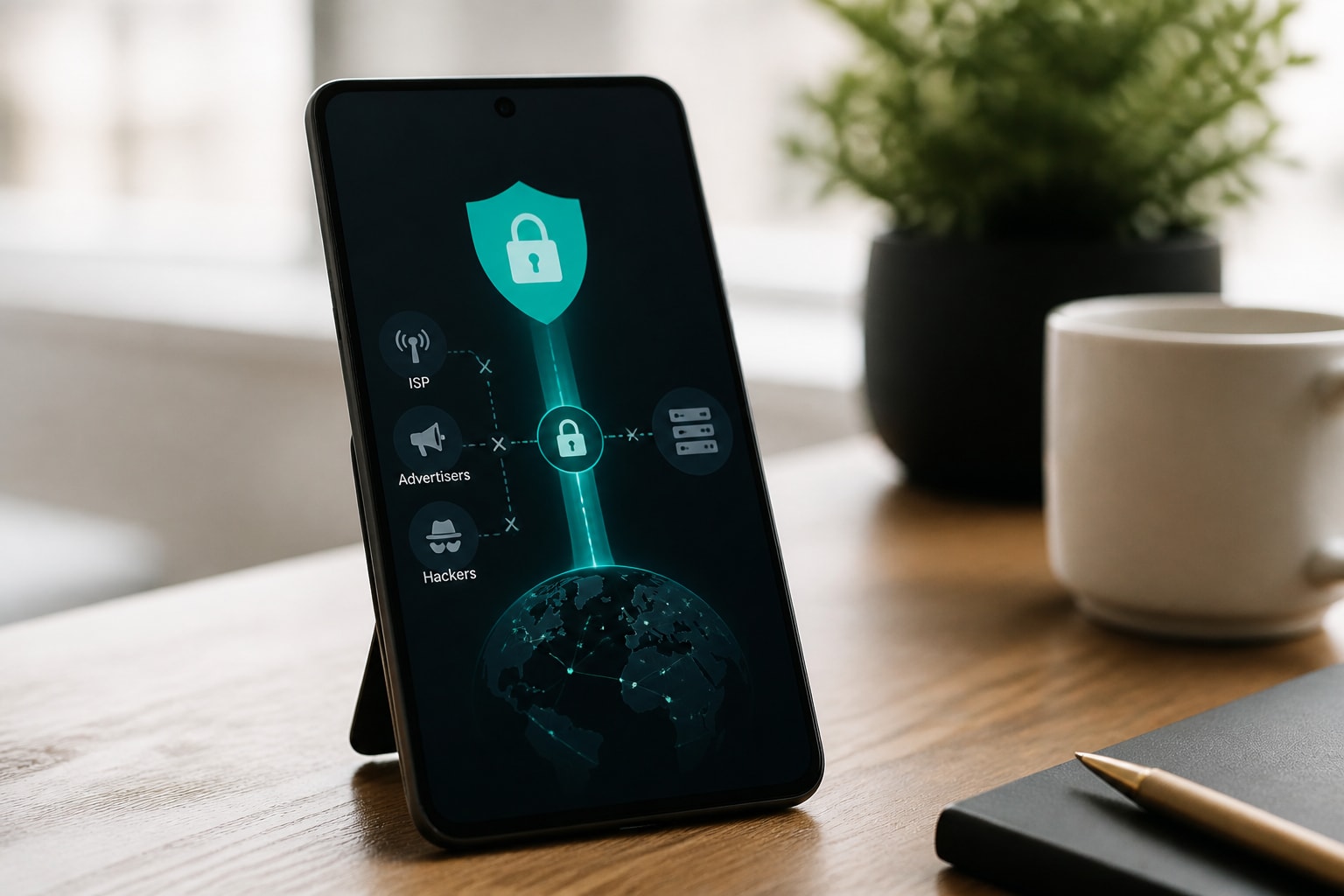
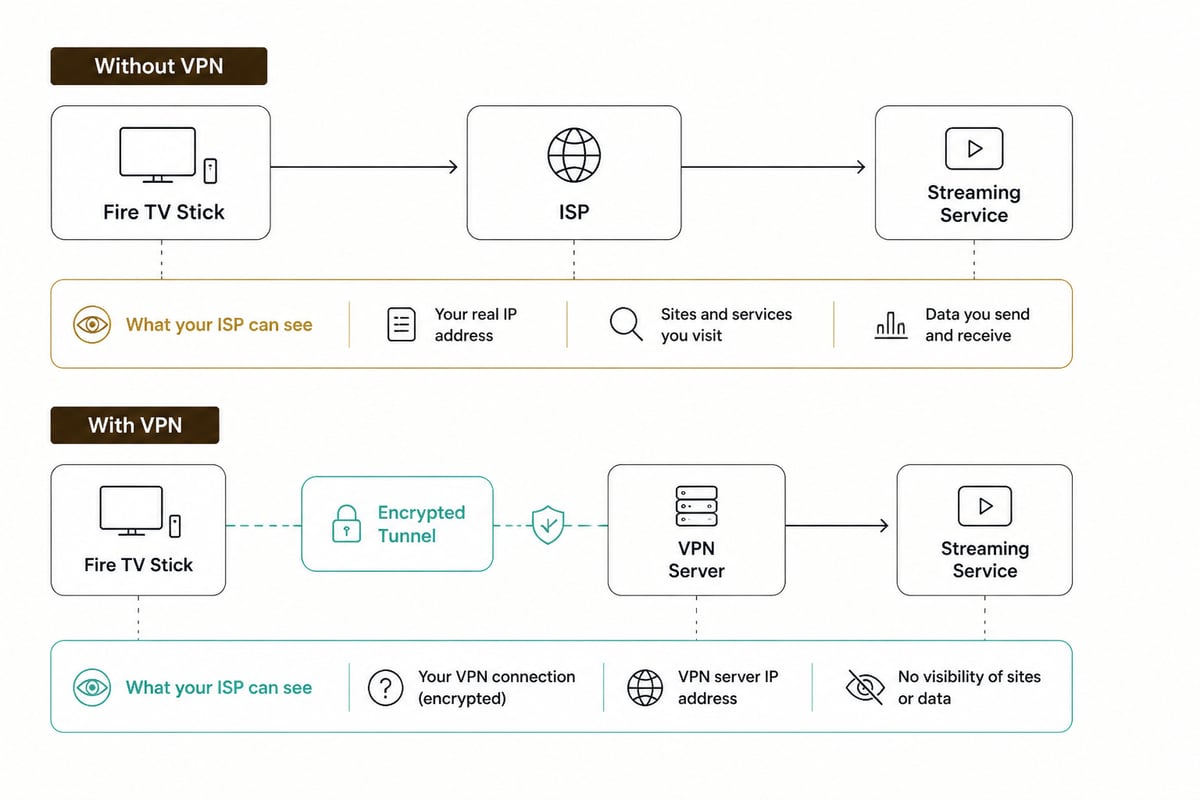
A VPN on a Fire TV Stick encrypts the traffic leaving your device, so your internet provider and other observers cannot read what you connect to. A Fire TV Stick has no built-in privacy tools, and it constantly communicates with streaming services, ad networks, and third-party apps.
Without a VPN, three groups can see that activity:
- Your ISP, which can log domains and connection patterns and, in some cases, slow down streaming traffic.
- Advertisers and data brokers, who build profiles from your IP address and viewing habits.
- Anyone on the same network, which matters in shared housing, hotels, and rented properties where you do not control the router.
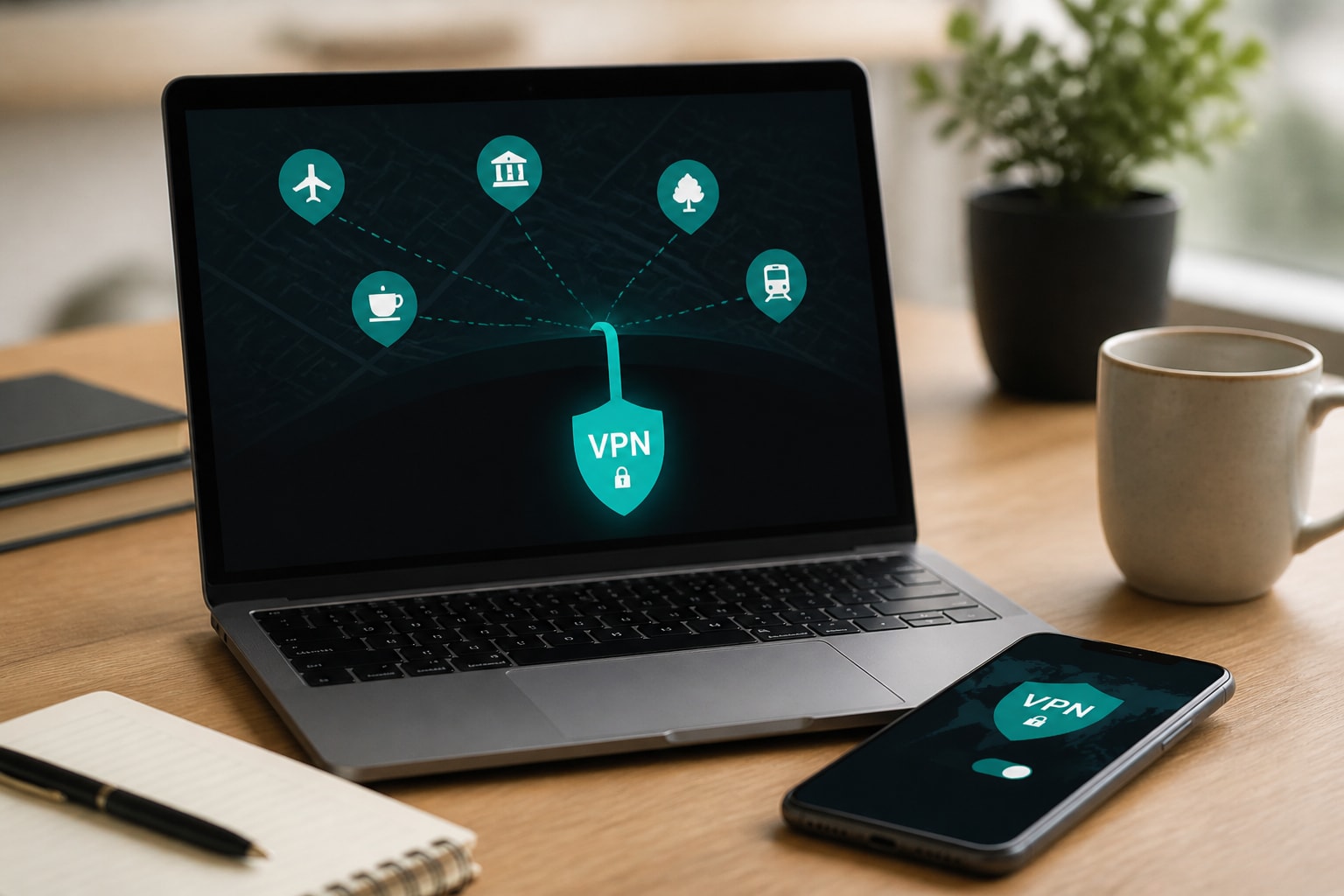
A VPN replaces your visible IP address with the address of a VPN server and wraps your traffic in an encrypted tunnel. For privacy-conscious users, that is the core benefit. Regional access and speed are secondary. If you want background on the underlying technology, how a VPN network works covers the fundamentals.
Which Fire TV Devices Support a VPN?
Most current Fire TV Stick models support VPN apps, but the exact requirements depend on the provider and the Fire OS version installed. IPVanish, for example, lists support for the Fire TV Stick 2nd and 3rd generation, Fire TV Stick Lite, Fire TV Stick 4K and 4K Max, and Fire TV devices. Norton states that its VPN needs app version 1.8 or later and a Fire TV device running Fire OS 8 or later.
Those two examples show the pattern. Before you pay for any service, check two things:
- Your Fire TV model and generation (Settings, then My Fire TV, then About).
- Your Fire OS version, listed on the same screen.
If your device runs an older Fire OS release, update it first. Older stick generations may lack the VPN permission features that current apps rely on, and in that case a router-level VPN is the alternative.
What Do You Need Before You Start?
You need four things in place: a paid VPN subscription, a Fire TV Stick on a current software version, a stable Wi-Fi connection, and your Amazon account signed in on the device.
A paid plan matters here more than on a phone. Free VPN apps often cap bandwidth, restrict servers, or may monetize user data, which can undermine the privacy goal of using a VPN. Streaming is bandwidth-heavy, so unlimited data is practically a requirement. The comparison in paid VPN vs free explains why free tiers rarely suit a streaming device.
Also decide which login method you prefer. Typing a long password with the Fire TV remote is tedious, so set up your account and credentials on a phone or computer first, then keep the details nearby.
How Do You Install a VPN App on a Fire TV Stick?
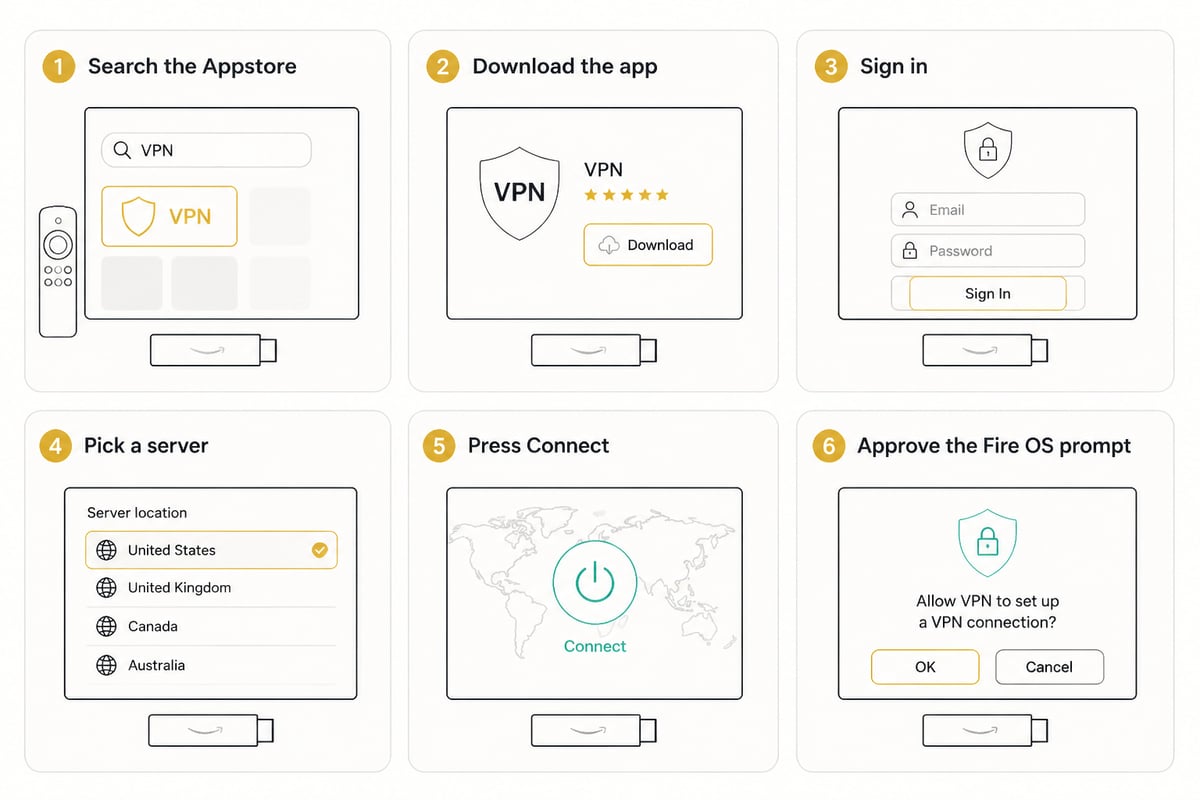
You install a VPN app on a Fire TV Stick by searching for it in the Amazon Appstore, downloading it, and signing in with your account. Follow these steps:
- From the Fire TV home screen, select Find, then Search.
- Type the name of your VPN provider and select it from the results.
- Choose Get or Download and wait for the installation to finish.
- Open the app and sign in with your account credentials.
- Select a server location, or accept the recommended one.
- Press Connect.
Fire OS then displays a system prompt asking you to authorize the VPN to reroute your internet traffic. With IPVanish, you select Connect, approve the Fire TV prompt, and a Connected notification appears when the connection is active. Most VPN apps follow a similar sequence, because the prompt comes from Fire OS and not from the VPN provider.
What If Your VPN Is Not in the Amazon Appstore?
If your VPN provider has no Fire TV app in the Amazon Appstore, you can sideload the provider's Android APK file or configure the VPN on your router instead. Both routes work, and each has trade-offs.
Sideloading involves enabling installation from unknown sources in Fire TV developer settings, then loading the APK with a downloader tool. Only install APK files from the provider's own website. Files from forums or mirror sites can contain malware, which would defeat the privacy goal entirely.
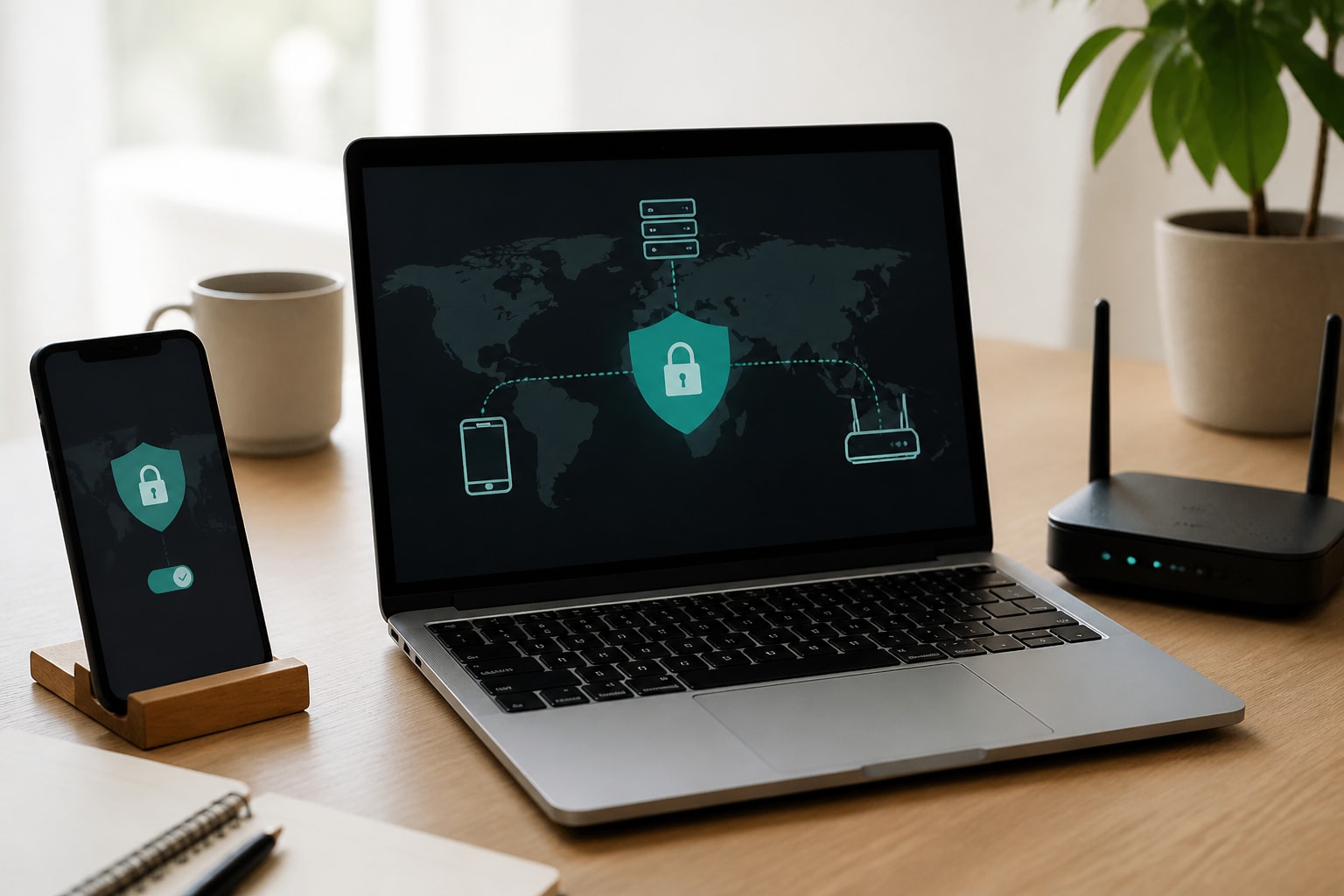
Router configuration places the VPN between your whole home network and the internet, so the Fire TV Stick is covered without any app. This approach also protects smart TVs, consoles, and other devices that cannot run a VPN app. The guides on setting up a VPN with a router and on the OpenVPN protocol explain the configuration in detail. The downside is that every device on that router shares one VPN location, and changing servers means logging in to the router.
Which VPN Settings Matter Most on a Fire TV Stick?
The settings that matter most are the kill switch, the protocol, split tunnelling, and DNS handling. Configuring these four correctly protects your privacy more than the choice of server location does.
- Kill switch: This cuts the connection if the VPN drops, so the stick never falls back to your unprotected ISP connection mid-stream. ZioFree includes an automatic kill switch for this reason.
- Protocol: WireGuard-based and OpenVPN protocols are the common options. WireGuard-style protocols are generally faster on low-powered hardware, which suits a stick. See VPN protocols and ports if you need to pick manually.
- Split tunnelling: This lets you send only selected apps through the VPN while others connect directly. It is useful if a banking or local-network app misbehaves when routed through a tunnel. ZioFree supports split tunnelling, so you can route your streaming apps and leave the rest alone.
- DNS leak protection: Your VPN should handle DNS queries inside the tunnel. A provider that logs DNS queries undermines everything else, so confirm its no-logs claims cover them.
Encryption strength is also worth confirming. AES-256, the standard ZioFree uses for all VPN traffic, is the encryption level widely accepted as the baseline for serious privacy.
How Do You Know the VPN Is Working?
You know the VPN is working when a Connected notification appears on screen, your visible IP address differs from your home IP, and DNS requests resolve through the VPN provider. Do not rely on the notification alone.
Run this short check:
- Before connecting, open a browser app on the Fire TV Stick, or use a phone on the same network, and note your public IP address.
- Connect the VPN and reload an IP-checking page in the Fire TV browser.
- Confirm the new IP and location match the VPN server you chose.
- Run a DNS leak test from the same browser. The resolver shown should belong to your VPN provider, not your ISP.
- Disconnect once to confirm the original IP returns, which proves the tunnel was the cause of the change.
If the IP never changes, the app is probably connected but blocked by a Fire OS permission. Return to the authorization prompt and approve it again.
Which Server Location Should You Pick?
Choose the closest server for the best speed, and a more distant one only when you have a specific reason. Distance adds latency, and on a streaming device latency shows up as longer buffering and lower resolution.
For privacy, the country matters less than the provider's policies, because the jurisdiction of the server is irrelevant if the provider keeps no logs. This is why server hardware is worth checking. ZioFree runs RAM-only servers, meaning data is never written to disk and is wiped on reboot. A no-logs policy is easier to trust when the hardware cannot retain data between restarts. The explanation of what a no-log VPN actually means is a useful reference when comparing claims.
Pick a nearby server for everyday viewing, and switch only if one location performs poorly at a particular hour.
Will Netflix Ban You for Using a VPN?
Netflix does not typically ban accounts for using a VPN. It often blocks the connection and shows a proxy error, which can limit you to the catalog available in your actual region or prevent playback entirely.
If you see that error, disconnect the VPN or switch to a different server and try again. Streaming services keep lists of IP addresses known to belong to VPN servers, so some addresses work and others do not. Remember that streaming terms of service differ by platform, so read the ones that apply to you.
How Much Does a VPN for a Fire TV Stick Cost?
A paid VPN for a Fire TV Stick typically costs a few dollars per month, with longer commitments usually lowering the monthly rate. The exact price depends on the provider and plan length, so confirm current pricing on the provider's own site.
Some points to weigh when comparing:
- Device coverage: Check how many simultaneous connections the plan allows, since a household may use a stick, phones, and laptops.
- Bandwidth limits: Streaming uses a lot of data, so unlimited bandwidth is essential.
- Server access: Some plans restrict the server list. Confirm you get every location.
ZioFree VPN Monthly includes unlimited bandwidth and access to all servers, which removes two common limits on a streaming device. You can review the plan on the ZioFree VPN Monthly page.
What Should You Do If Your Free VPN Options Fall Short?
If you are searching for a free VPN for a Fire TV Stick, understand the trade-off first: free services are funded by something, and that something is often your data, your bandwidth, or intrusive advertising. For a device that watches your viewing habits all day, that is a poor bargain.
Free apps commonly impose speed caps, data limits, and restricted server lists. Some may inject ads or sell connection metadata. Streaming, which needs sustained throughput, tends to push free plans past their limits within a single evening. If the goal is to stop ISPs and advertisers from tracking you, a no-logs paid service fits that goal better. The write-up on free VPN networks outlines the risks in more detail.
ZioFree is a paid service, so it is not the right choice if you need a free VPN.
How Do You Fix Common Fire TV VPN Problems?
Most Fire TV VPN problems come from a permission prompt that was dismissed, a congested server, or a stale app session, and each has a quick fix.
| Problem | Likely cause | Fix |
|---|---|---|
| App shows connected but IP is unchanged | Fire OS authorization not approved | Disconnect, reconnect, and approve the prompt |
| Buffering or low resolution | Distant or overloaded server | Switch to a closer server or a different protocol |
| Streaming app shows a proxy error | Server IP is flagged by the service | Try another server location |
| VPN drops repeatedly | Weak Wi-Fi signal | Move the router closer or use an Ethernet adapter |
| App will not install | Outdated Fire OS or low storage | Update Fire OS and clear space |
If problems persist after these steps, restart the Fire TV Stick by unplugging it for 30 seconds, then reconnect. An Ethernet adapter, where supported by your model, also removes Wi-Fi instability from the picture and improves tunnel reliability.
FAQ
What is the best free VPN for a Fire TV Stick in 2026?
No free VPN is a good fit for a privacy-focused Fire TV Stick setup. Free plans generally limit speed and data, and many fund themselves through advertising or data collection. A paid no-logs service is the safer choice for a device that streams for hours.
Can you use a VPN on a Fire TV Stick in the UK?
Yes, the setup is the same in the UK as anywhere else. Install the app from the Amazon Appstore, sign in, and connect to a server. The same advice applies about free services: bandwidth caps and data collection make paid, no-logs options the better fit.
Does a VPN slow down a Fire TV Stick?
A VPN adds some overhead, so speeds can drop slightly, but a nearby server and an efficient protocol keep the difference small for most connections. Switching servers or protocols usually resolves noticeable slowdowns. See the notes on fast VPN services for tuning tips.
Start by checking your Fire OS version under Settings, then My Fire TV, then About, so you know your stick can run a VPN app before you subscribe. When you are ready, ZioFree VPN Monthly gives you AES-256 encryption, an automatic kill switch, split tunnelling, and RAM-only servers under a strict no-logs policy, all with unlimited bandwidth. Get Started Now and protect every stream your Fire TV Stick plays.