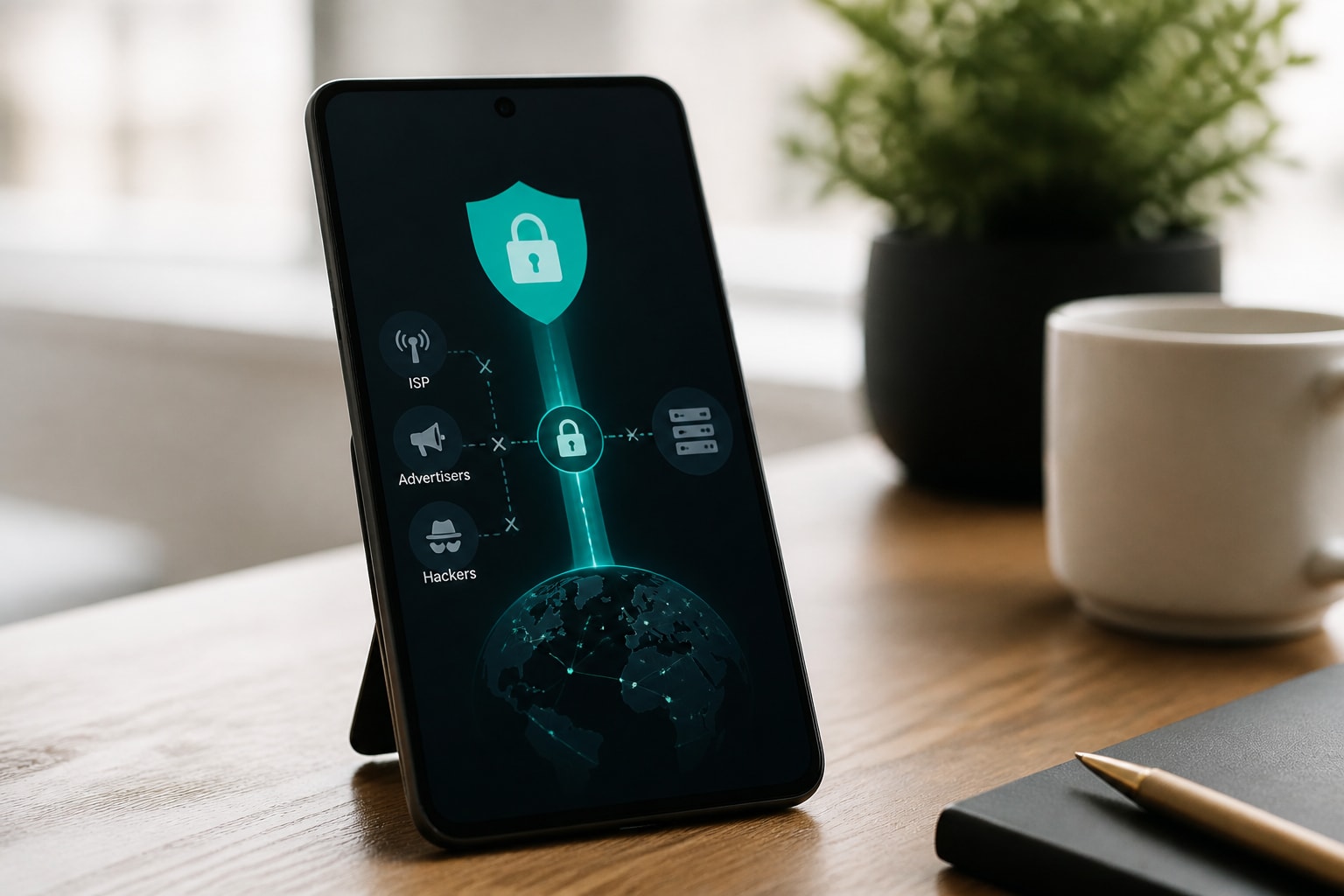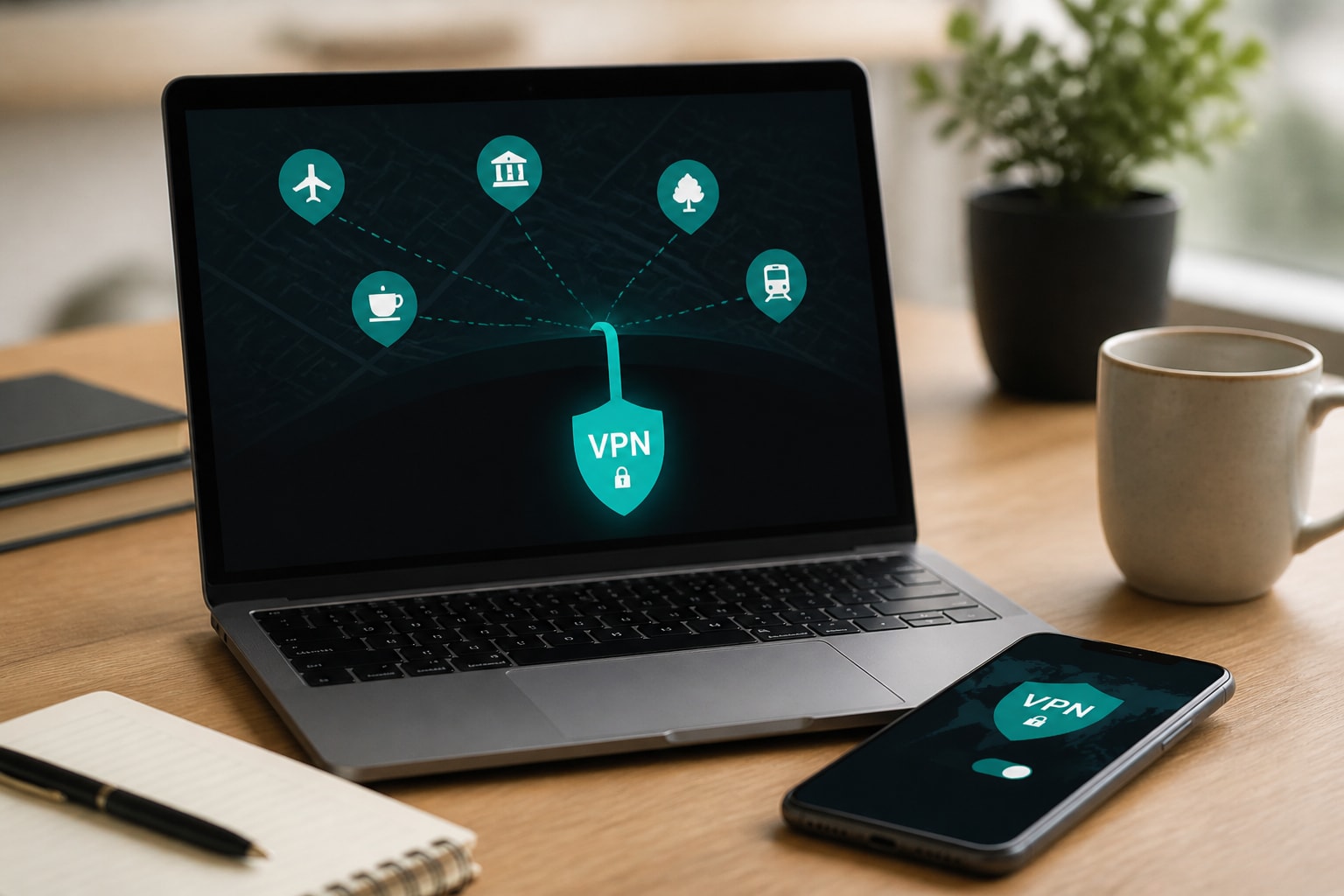




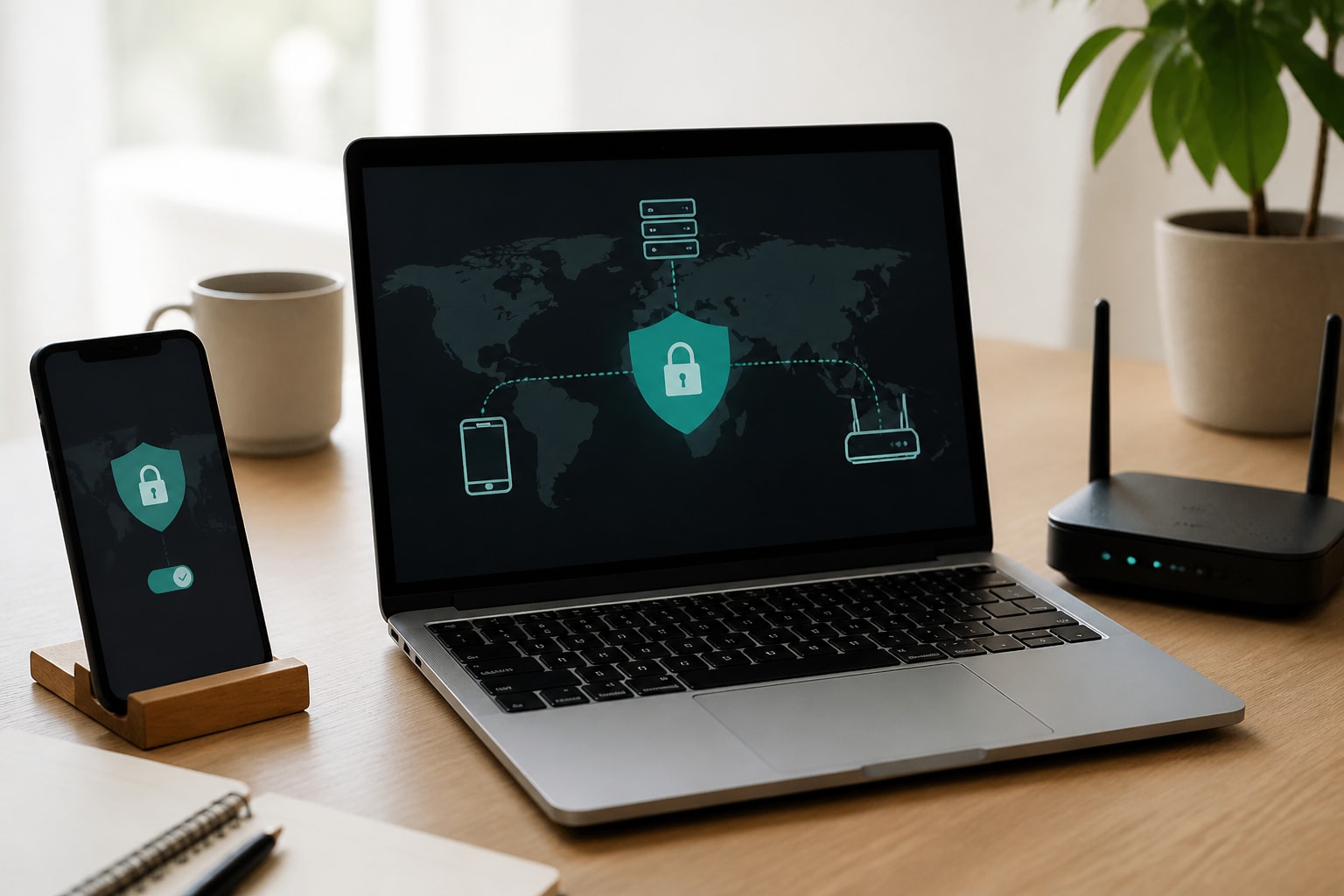
To set up a VPN, choose a provider, create an account, install the provider's app on each device, sign in, pick a server and switch on the connection. The process is quick on each device, and a few settings, such as the kill switch and protocol, determine how well your browsing stays protected from ISPs, advertisers and hackers.
This guide walks through each stage in order, from choosing a plan to configuring Windows, Android, iPhone and a home router, and then testing that your traffic is actually protected.
What You Need Before You Start
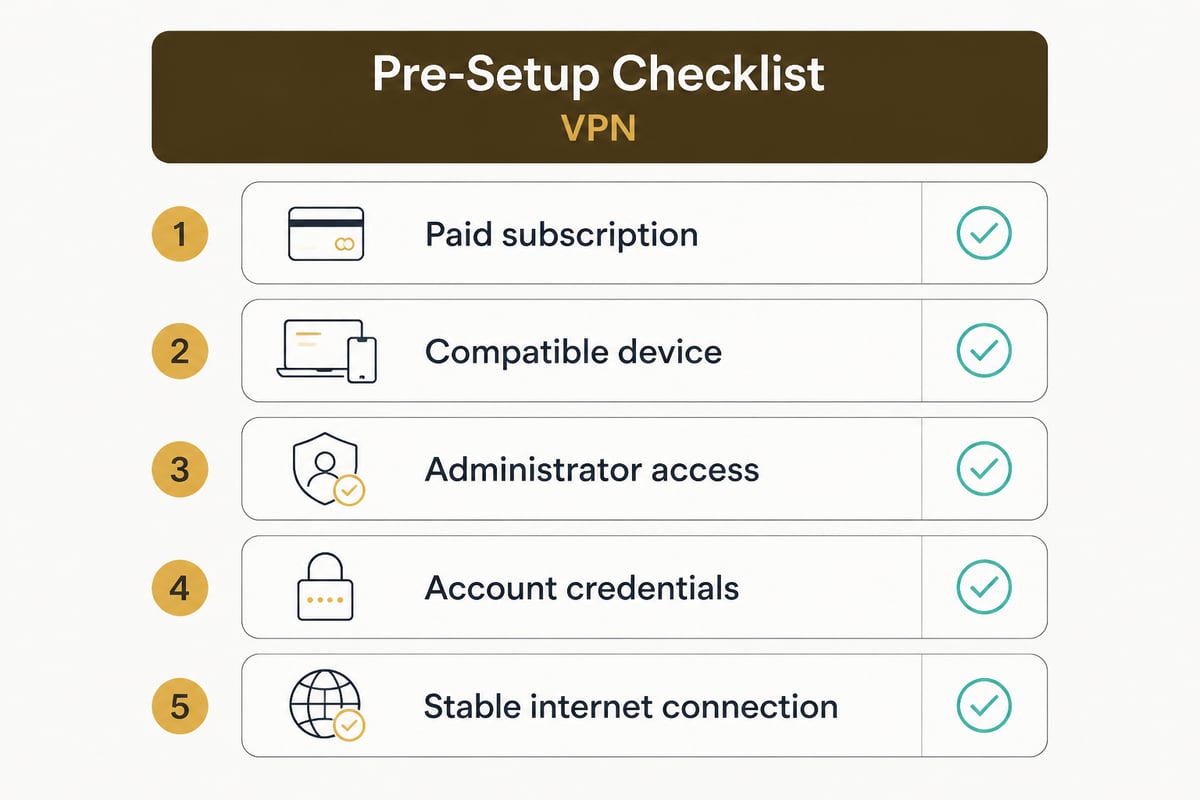
You need four things in place before installing anything: a paid VPN subscription, a supported device, a stable internet connection and your account credentials.
- A paid subscription. Free services often limit bandwidth or monetize your activity, which defeats the purpose of private browsing. If you are weighing the trade-offs, this comparison of paid VPNs versus free ones explains the differences.
- A compatible device. Windows, Android, iPhone, iPad and many routers work with standard VPN apps or manual configurations. Check whether a ZioFree app is available for your platform before you plan your setup.
- Administrator access. Windows may ask for permission to install a network driver, and iOS will ask you to allow a VPN configuration.
- Your login details. Keep your email and password handy, plus any server addresses if you plan to configure a connection manually.
Step 1: Choose a VPN Plan That Fits How You Browse
Pick a plan that offers strong encryption, a verified no-logs policy, unlimited bandwidth and servers in the regions you need, because these determine how much protection you actually get.
Look for AES-256 encryption, an automatic kill switch and a clear statement of what the provider records. A genuine no-log VPN should state that it does not collect browsing activity, DNS queries, connection timestamps or IP addresses. RAM-only servers add another layer, since data is never written to disk and is wiped on reboot.
ZioFree's monthly VPN plan includes unlimited bandwidth and access to all servers, so you do not need to ration data or choose between locations. For exact pricing and current terms, check the ZioFree pricing page directly.
Step 2: Create Your Account and Download the App
Create your account on the provider's website, then download the official app only from that site or from your device's official app store.
Avoid installers from third-party download pages, since tampered VPN clients are a known way to compromise a device. Use a unique password, ideally from a password manager, and enable two-factor authentication if the provider offers it. Save your credentials somewhere secure, because you will enter them on every device.
Step 3: How to Set Up a VPN on Windows
On Windows, run the installer, approve the network adapter prompt, sign in and choose a server from the app's location list.
- Run the downloaded installer and accept the Windows permission prompt for the virtual network adapter.
- Open the app and sign in with your account details.
- Browse the server list and select a location close to you for the best speed, or a different region if you need one.
- Click connect and wait for the status to show that the tunnel is active.
- Open the app's settings and confirm that the kill switch is turned on.
If you prefer a built-in route, Windows also lets you add a VPN connection under Settings, Network and Internet, VPN. That method requires a server address, connection type and credentials from your provider, and it generally lacks the kill switch and split tunnelling that a dedicated app provides. For most privacy-conscious users, the app is the better choice.
Step 4: How to Set Up a VPN on Android
On Android, install the app from the official store, sign in, grant the VPN connection request and tap connect.
Android shows a system prompt asking whether you trust the app to create a VPN connection. Accept it, because without that permission no traffic can be routed through the tunnel. After connecting, a key icon appears in the status bar.
Two settings are worth enabling straight away:
- Always-on VPN. In Android's network settings, you can set the VPN to reconnect automatically after a restart or a dropped signal.
- Block connections without VPN. This system-level option works alongside the app's kill switch and prevents traffic from leaking if the tunnel fails.
For a deeper look at how the encrypted tunnel behaves once connected, see this explanation of how a VPN network works.
Step 5: How to Set Up a VPN on iPhone and iPad
On iPhone and iPad, you can either install the provider's app or enter a connection manually, since iOS includes native support for several VPN protocols.
According to Apple Support, iPhone and iPad have built-in support for L2TP, IKEv2 and IPSec VPN connections. The app route is simpler: install the app, sign in and allow the VPN configuration when iOS prompts you.
For a manual setup, Apple documents the path as Settings, General, VPN & Device Management, then Add VPN Configuration. You will need the connection type, server address, account name and authentication details such as a password or certificate. For IKEv2, the manual fields also include a Remote ID and a Local ID. Your provider supplies all of these values.
Some VPN setups depend on an app configured for that network, which is why the app method is the easiest option for most people. If you later want to remove a configuration, this walkthrough on removing a VPN from an iPhone covers the steps.
Step 6: Set Up a VPN on Your Router to Cover Every Device
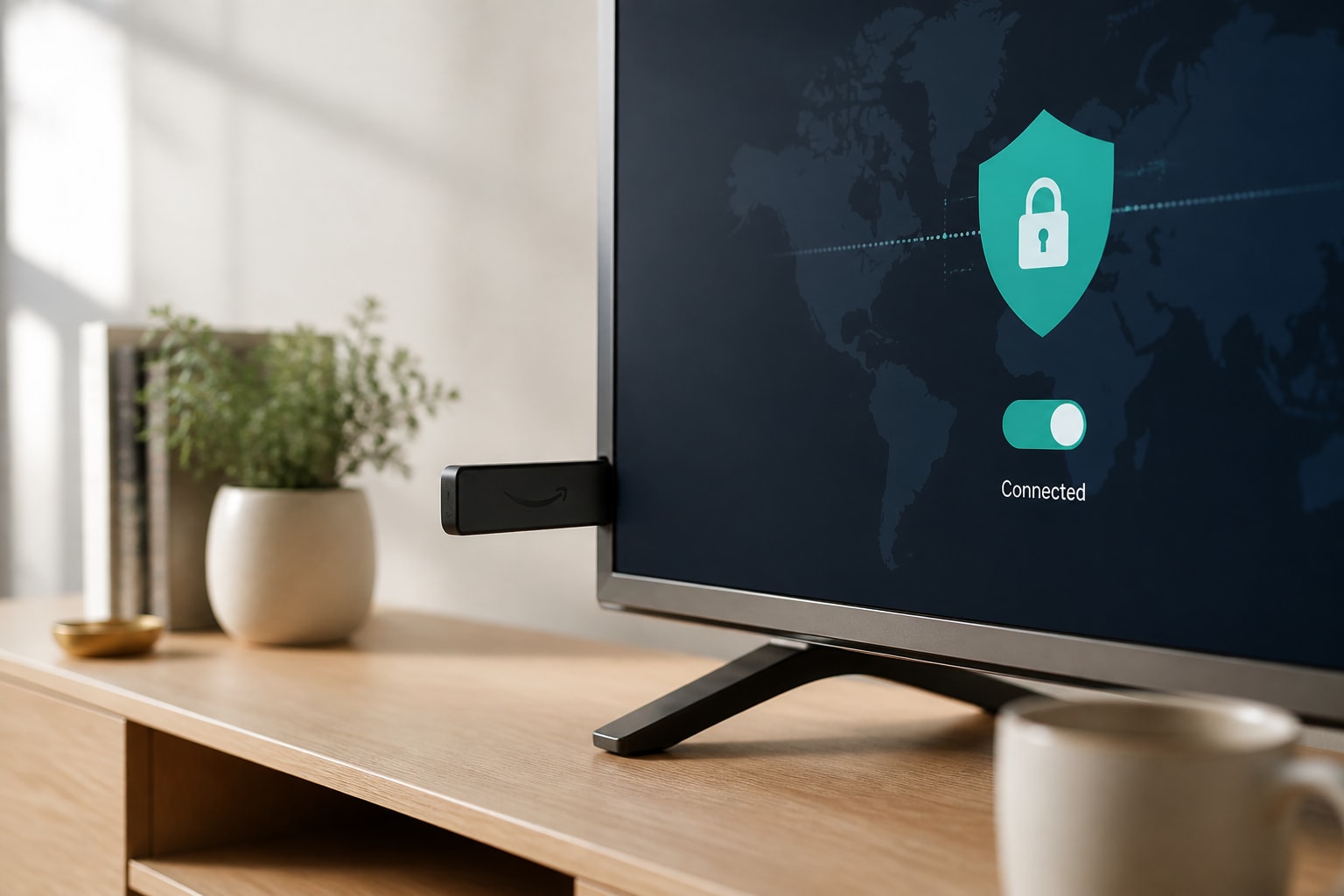
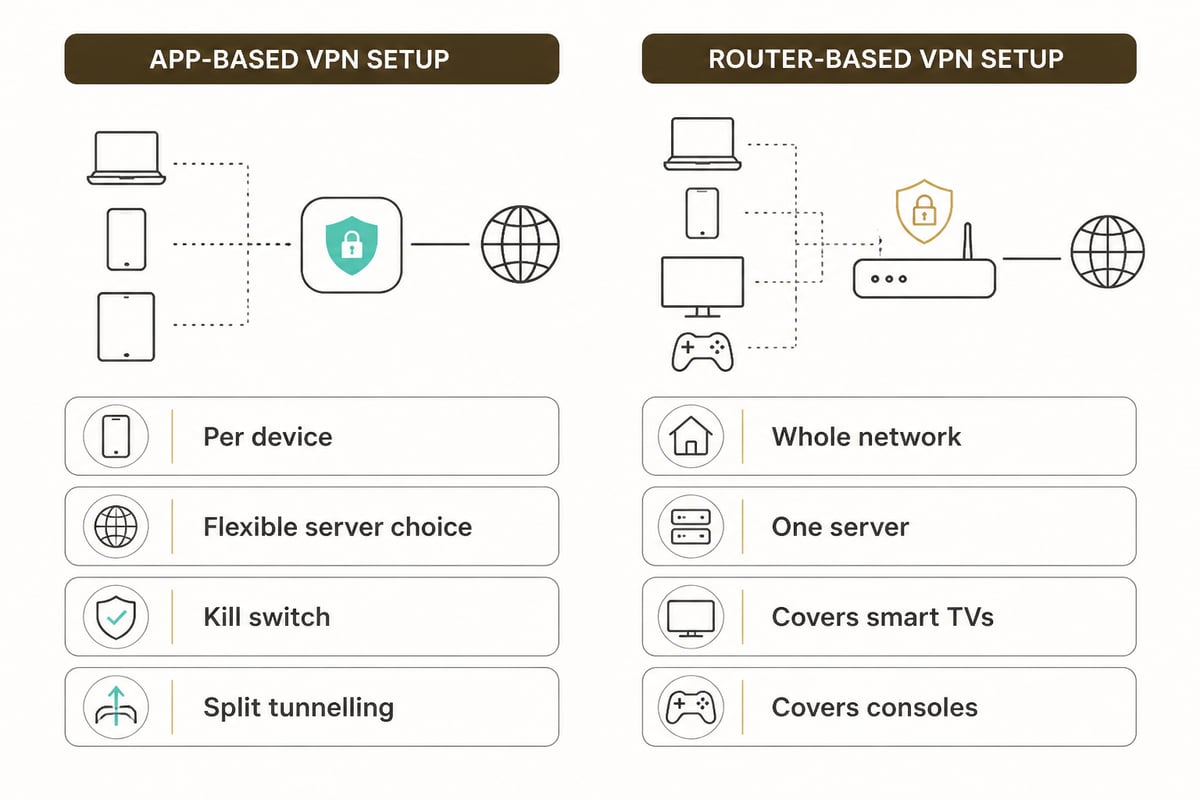
A router-level VPN protects every device on your home network, including smart TVs, consoles and other hardware that cannot run a VPN app.
The general process is to log in to your router's admin page, find the VPN client section, enter the server details and credentials from your provider, and save the configuration. Not every router firmware supports VPN client mode, so check your model's documentation first. A full walkthrough is available in this guide on setting up a VPN with a router.
Router setups have trade-offs. All devices share one connection, so you cannot choose a different server per device without extra configuration, and router hardware can limit speeds. Many users run the app on laptops and phones for flexibility and reserve the router for fixed devices.
Step 7: Choose a Protocol and Turn On the Safety Features
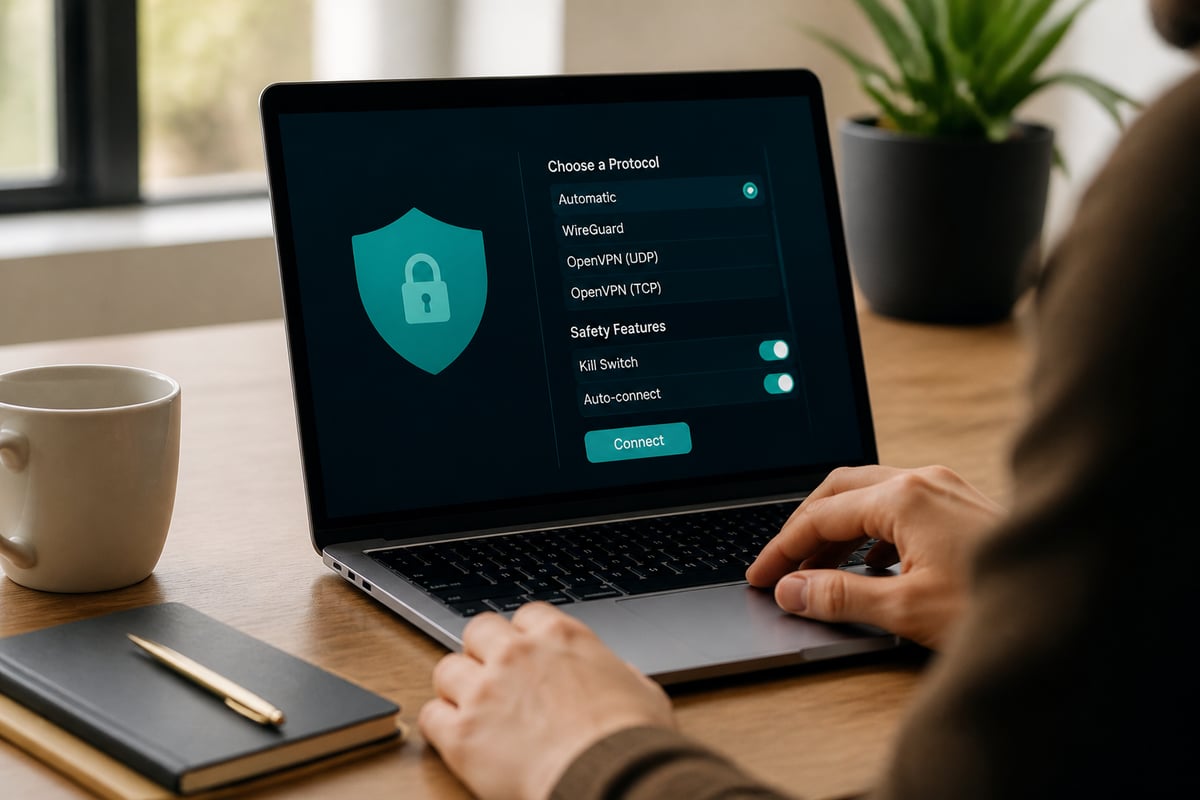
After connecting, open the settings and enable the kill switch, confirm the protocol and decide whether split tunnelling suits your routine.
The kill switch blocks all internet traffic if the VPN connection drops, so your real IP address is never exposed. ZioFree includes an automatic kill switch, but it is worth confirming it is active on each device.
Split tunnelling lets you send only selected apps through the VPN while others use your regular connection. This is useful when a banking app or local streaming service behaves poorly on a VPN, or when you want maximum speed for a game while keeping your browser protected.
For protocols, a modern option such as WireGuard or IKEv2 offers a good balance of speed and security, while OpenVPN remains a dependable choice for compatibility.
Step 8: Test That Your VPN Is Working
Test the connection by checking your visible IP address, running a DNS leak test and confirming that the kill switch blocks traffic when the tunnel drops.
- Note your IP address before connecting, using any IP lookup site.
- Connect to a server and check again. The address and location should now match the VPN server.
- Run a DNS leak test to confirm your queries go through the VPN's resolvers and not your ISP's.
- Briefly switch off Wi-Fi and back on while watching the app to see that it reconnects without exposing traffic.
If your IP still shows your real location, disconnect, restart the app and try a different server or protocol.
Does a VPN Hide My Location?
A VPN hides your real IP address and replaces it with the address of the VPN server, so websites see the server's location instead of yours.
This prevents sites, advertisers and your ISP from reading your network address and approximate location. It does not hide everything. GPS data on a phone, browser fingerprinting, and logging into personal accounts can still reveal who you are. For stronger anonymity, combine a VPN with privacy-minded browser settings, as explained in this overview of VPNs and anonymity.
How Does a VPN Protect My Data?
A VPN protects your data by encrypting traffic between your device and the VPN server, which stops ISPs, network operators and hackers on shared Wi-Fi from reading it.
With AES-256 encryption, intercepted traffic appears as unreadable ciphertext. This matters most on public networks, where attackers can position themselves between you and the router. If you often work from cafes, airports or hotels, review these tips on using a VPN on public Wi-Fi. Encryption protects data in transit only. It does not stop malware, phishing pages or data you voluntarily hand over to a website.
Common Mistakes and Troubleshooting
Most setup problems come from a handful of causes, and each has a quick fix.
- The VPN will not connect. Switch protocols, try a different server and confirm that your firewall or antivirus is not blocking the app. Security software can interfere with VPN connections, so temporarily disabling it can help identify the cause if an iPhone or Mac refuses to connect.
- Speeds are slow. Choose a server geographically closer to you, switch to a lighter protocol and close bandwidth-heavy apps. Read more about choosing a fast VPN if speed is a priority.
- A certificate error appears on Apple devices. The server identity certificate should include the server DNS name or IP address in its SubjectAltName field, and the required CA certificates must be installed and valid. A mismatch here can cause manual IKEv2 connections to fail.
- The kill switch is off. Many apps ship with it disabled or only partly active. Check it on every device after installation.
- Running two VPNs at once. Overlapping VPN apps or leftover profiles conflict with each other. Remove old configurations before installing a new one.
- Using a free service for sensitive browsing. Limited bandwidth, unclear logging and ad injection undermine the goal of private browsing.
What Are the Downsides of Using a VPN?
The main downsides are a modest drop in speed, a recurring subscription cost and the fact that you must trust your provider with your traffic.
Encryption adds overhead, and a distant server adds latency, though a quality service keeps this small. Some websites and streaming platforms block known VPN addresses, which can require switching servers. The trust issue is the most important one, and it is why a verified no-logs policy and RAM-only servers matter when you compare providers.
FAQ
How much does it cost to set up a VPN?
A paid VPN is typically billed as a monthly or longer-term subscription, and the setup itself costs nothing extra. Router setups may require compatible hardware, which is a separate expense. Check ZioFree's pricing page for current plan details.
Can I use one VPN account on several devices?
Many providers allow multiple simultaneous connections under one account, but the limit varies. Confirm the device allowance on the provider's pricing or support pages before planning a setup for phones, laptops and a router.
Do I need to leave the VPN on all the time?
For privacy-focused browsing, keeping it on continuously with the kill switch enabled gives the most consistent protection. If a specific app misbehaves, use split tunnelling to exclude it instead of disabling the VPN entirely.
Start today by installing the official app on the device you use most and running the IP and DNS leak tests from Step 8. If you want a service built around no-logs protection, AES-256 encryption, RAM-only servers and an automatic kill switch, the ZioFree VPN Monthly plan covers every server with unlimited bandwidth. You can view current plans and Get Started Now with ZioFree to protect your browsing from tracking and interception.