



Many iPhone users install VPN applications for privacy and security, but there comes a time when you need to understand how to remove a VPN from an iPhone completely. Whether you're switching to a different service, troubleshooting connectivity issues, or simply no longer need the protection, removing a VPN properly ensures your device runs smoothly without leftover configurations interfering with your network connections. This comprehensive guide walks you through every method for removing VPN software and profiles from your iPhone, covering both consumer applications and enterprise-managed configurations.
Understanding VPN Configurations on iPhone
Before learning how to remove a VPN from an iPhone, it's essential to understand how VPNs are installed and configured on iOS devices. Apple's ecosystem allows VPN installation through two primary methods: standalone applications downloaded from the App Store and configuration profiles that can be installed manually or through enterprise device management systems.
When you install a VPN app from the App Store, the application typically creates a VPN configuration within your iPhone's settings. This configuration tells your device how to connect to the VPN server, which encryption protocols to use, and when to activate the connection. Some VPN services also install a configuration profile, which is a separate system-level component that can persist even after you delete the app itself.
Enterprise VPNs function differently. Organizations often deploy VPN configurations through Mobile Device Management (MDM) systems like Microsoft Intune or other enterprise management platforms. These profiles are designed to be more persistent and may require additional steps to remove completely. Microsoft's documentation on VPN settings for iOS provides insight into how these enterprise configurations are deployed and why they might resist simple deletion attempts.
Understanding whether your VPN was installed as a consumer app or an enterprise profile will determine which removal method you need to follow.
Method 1: Disconnecting and Deleting the VPN App
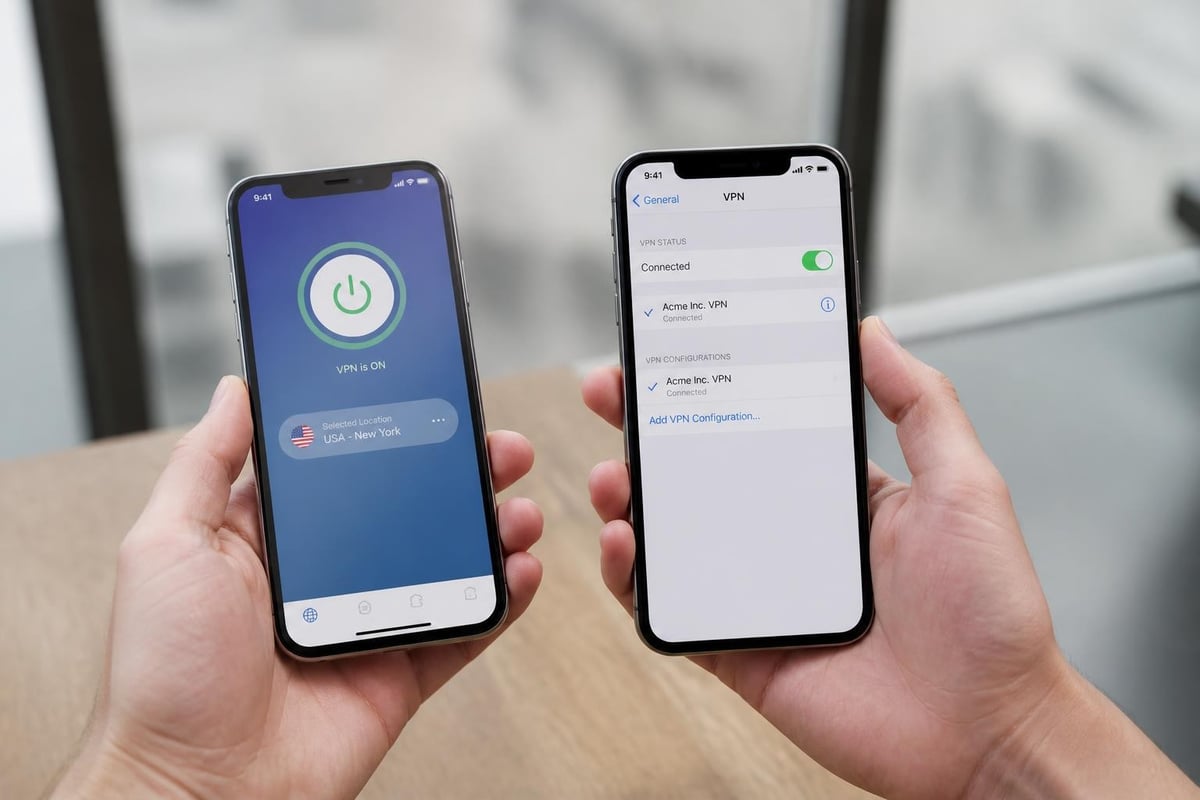
The simplest approach when you want to know how to remove a VPN from an iPhone is to disconnect the active VPN connection and then delete the application. This method works for most consumer VPN applications purchased or downloaded through the App Store.
Disconnect the Active VPN Connection
First, ensure the VPN is not actively connected:
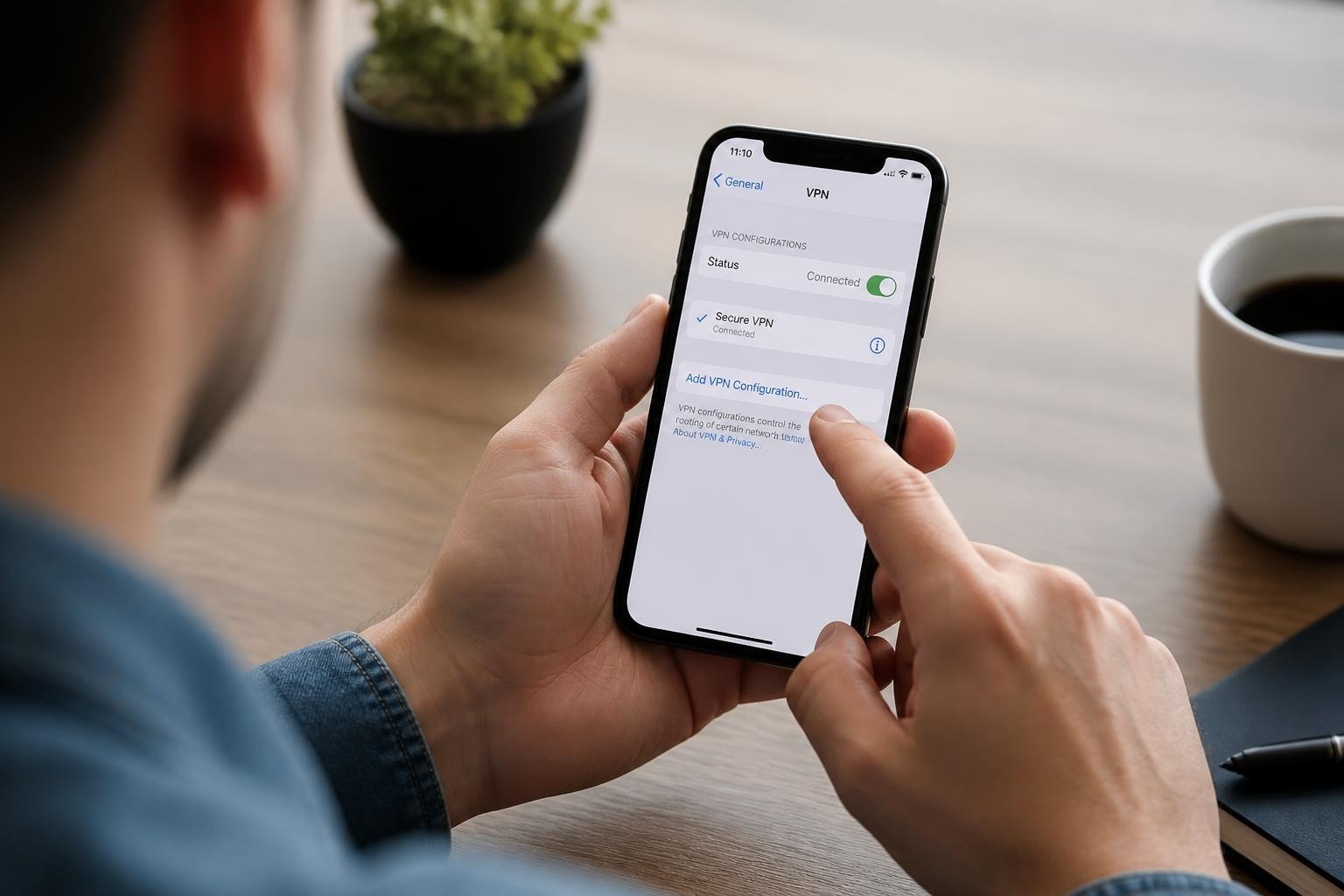
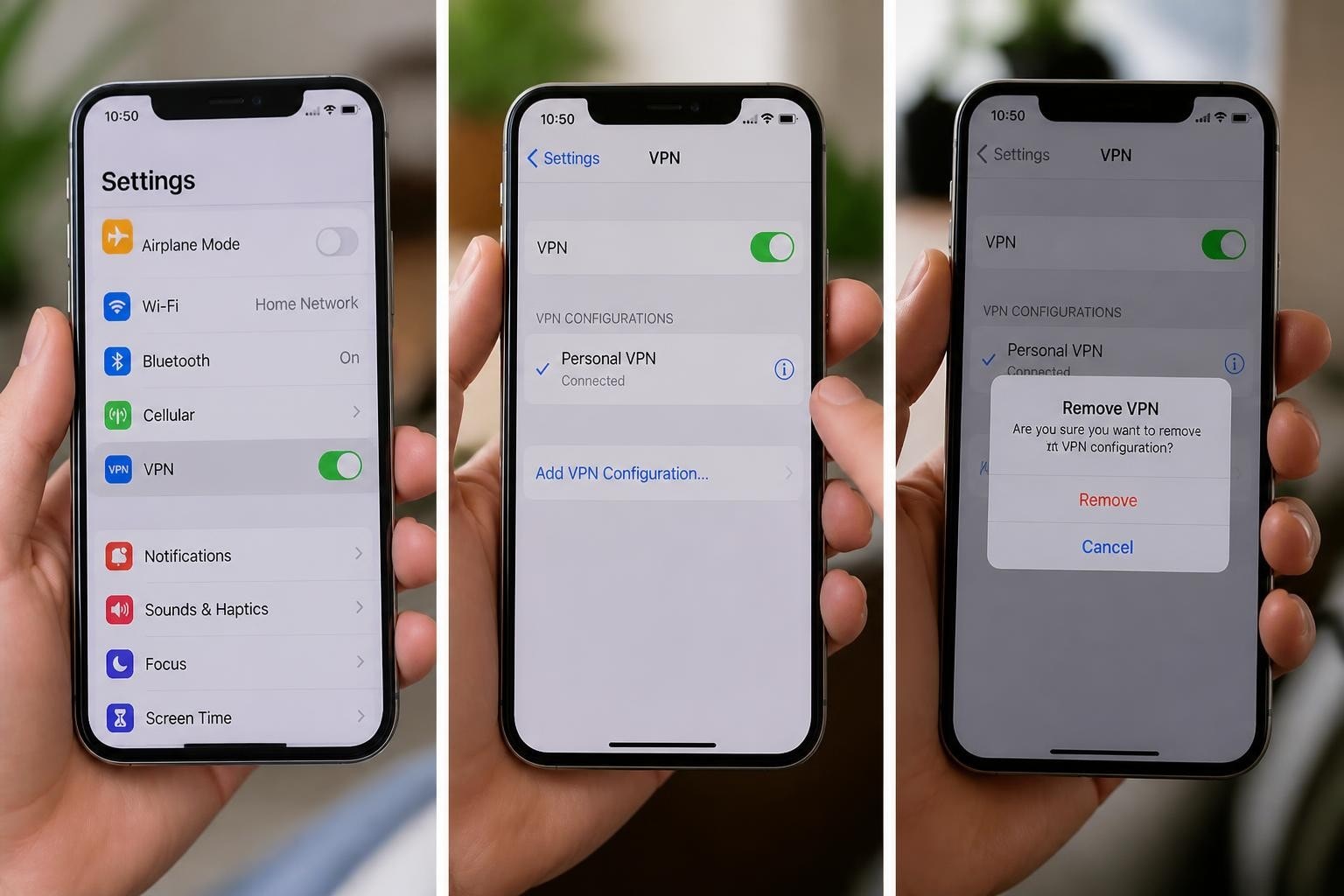
- Open the Settings app on your iPhone
- Tap VPN & Device Management (or simply VPN on older iOS versions)
- Toggle the Status switch to the off position
- Verify the VPN icon disappears from your status bar
At this stage, your VPN is disconnected but not removed. The configuration still exists on your device and can reconnect automatically if the app has "Connect On Demand" enabled.
Delete the VPN Application
Once disconnected, proceed to delete the VPN app:
- Locate the VPN app icon on your home screen
- Press and hold the app icon until the quick actions menu appears
- Select Remove App
- Confirm by tapping Delete App
- The app and most of its data will be removed from your device
For many VPN services, including those similar to ZioFree's high-speed VPN solution, deleting the app removes the VPN configuration automatically. However, some applications leave behind configuration profiles that require additional steps to remove completely.
Engadget's walkthrough on VPN removal confirms that app deletion is often the first step, but not always the final one when learning how to remove a VPN from an iPhone.
Method 2: Removing VPN Configuration Profiles
Configuration profiles represent a deeper level of VPN integration with your iPhone's operating system. These profiles can remain on your device even after deleting the VPN app, potentially causing connectivity issues or preventing you from installing a new VPN service. If you're considering switching providers or exploring what makes a good VPN, removing old profiles is essential.
Locate Configuration Profiles
To find and remove VPN configuration profiles:
- Open Settings
- Navigate to General
- Scroll down and tap VPN & Device Management
- Look for the Configuration Profile section
- Any installed profiles will be listed here
If you don't see a Configuration Profile section, your VPN app didn't install a separate profile, and the previous deletion method was sufficient.
Delete the Profile Permanently
When you identify a VPN-related profile:
- Tap on the profile name to view details
- Review the profile information to confirm it's the VPN you want to remove
- Tap Remove Profile at the bottom of the screen
- Enter your device passcode when prompted
- Confirm the removal by tapping Remove again
Apple's official support documentation provides authoritative guidance on this process, confirming that removing a configuration profile deletes all settings and data associated with that profile.
| Profile Type | Removal Difficulty | Persistence After App Deletion | Requires Passcode |
|---|---|---|---|
| Consumer VPN | Easy | Sometimes | Yes |
| Enterprise VPN | Moderate to Difficult | Always | Yes |
| Manual Configuration | Easy | Always | Yes |
| MDM-Deployed | Difficult | Always | Yes + Unenrollment |
Method 3: Removing Enterprise and MDM-Managed VPNs
Enterprise environments present unique challenges when you need to know how to remove a VPN from an iPhone. Organizations deploy VPNs through Mobile Device Management systems to ensure employees maintain secure connections to corporate resources. These configurations are intentionally difficult to remove without proper authorization.
Understanding MDM Restrictions
MDM-deployed VPNs often include restrictions that prevent standard removal:
- Device enrollment must be terminated before profile removal
- Administrator permissions may be required
- Corporate policies might prevent deletion entirely
- Remote management can reinstall the VPN automatically
If your iPhone is enrolled in an MDM system like Microsoft Intune, you'll need to unenroll the device before you can remove the VPN profile. Microsoft's documentation on iOS unenrollment explains the process, which typically requires:
- Opening the Company Portal or Intune app
- Selecting your device from the device list
- Choosing Remove or Unenroll
- Confirming the unenrollment action
- Following any additional prompts from your IT department
Important: Unenrolling from MDM may remove access to corporate email, documents, and applications. Consult your IT department before proceeding if the device is company-owned or required for work.
Alternative Removal for Persistent Profiles
Some enterprise VPN profiles refuse to delete even after app removal. Advanced troubleshooting steps include:
- Restarting your iPhone after attempting removal
- Checking for pending software updates that might resolve profile conflicts
- Reviewing all installed apps for device management capabilities
- Contacting your organization's IT support for assisted removal
Apple's Personal Safety guidance explains how to review and delete configuration profiles that may have been installed without your knowledge, which is particularly relevant if you're uncertain about the origin of a VPN profile on your device.
Troubleshooting VPN Removal Issues
Even when following the correct steps for how to remove a VPN from an iPhone, you may encounter issues that prevent complete removal. Understanding common problems and their solutions ensures a clean uninstallation.
VPN Keeps Reconnecting Automatically
Some VPN applications enable "Connect On Demand" features that automatically reconnect whenever you use the internet. Bitdefender's troubleshooting guide addresses this specific issue:
To disable automatic VPN connection:
- Go to Settings > VPN & Device Management
- Tap the information icon (i) next to your VPN connection
- Disable Connect On Demand
- Turn off any domain-based connection rules
- Save the changes before attempting removal
This prevents the VPN from reactivating while you complete the removal process.
Profile Deletion Option Grayed Out
When the "Remove Profile" button appears grayed out or inactive, it typically indicates:
- The profile is supervised by an organization
- Restrictions are in place preventing removal
- The device is enrolled in MDM
- A passcode or authentication issue exists
Try these solutions:
- Ensure you're entering the correct device passcode
- Check if your organization requires approval for profile removal
- Update iOS to the latest version before attempting removal
- Reset network settings (Settings > General > Transfer or Reset iPhone > Reset > Reset Network Settings)
Network Connectivity Issues After Removal
Some users experience network problems after removing a VPN. This occurs when VPN configurations modify system-level network settings that aren't fully restored upon removal.
Resolution steps:
- Toggle Airplane Mode on for 10 seconds, then off
- Reset network settings to restore default configurations
- Forget and reconnect to Wi-Fi networks
- Restart your iPhone completely
- Contact your carrier if cellular data remains affected
Understanding how VPN networks work can help you identify which settings might have been changed and need restoration.
Security Considerations When Removing VPNs
Before you remove a VPN from your iPhone, consider the security implications of operating without VPN protection. VPNs serve critical functions for privacy and security, especially on mobile devices that frequently connect to untrusted networks.
When You Should Keep Your VPN
The CISA mobile communications best practices guidance emphasizes the importance of VPN protection in several scenarios:
- Connecting to public Wi-Fi networks in cafes, airports, or hotels
- Accessing sensitive personal or work information on mobile networks
- Traveling internationally where internet surveillance is common
- Protecting against targeted attacks and interception attempts
- Maintaining privacy from internet service providers and third parties
If you're removing a VPN because of performance issues or compatibility problems rather than because you no longer need protection, consider switching to a more reliable service. Services like ZioFree offer high-speed connections that minimize performance impact while maintaining strong security.
What You Lose When Removing a VPN
| Security Feature | Impact of Removal | Alternative Solution |
|---|---|---|
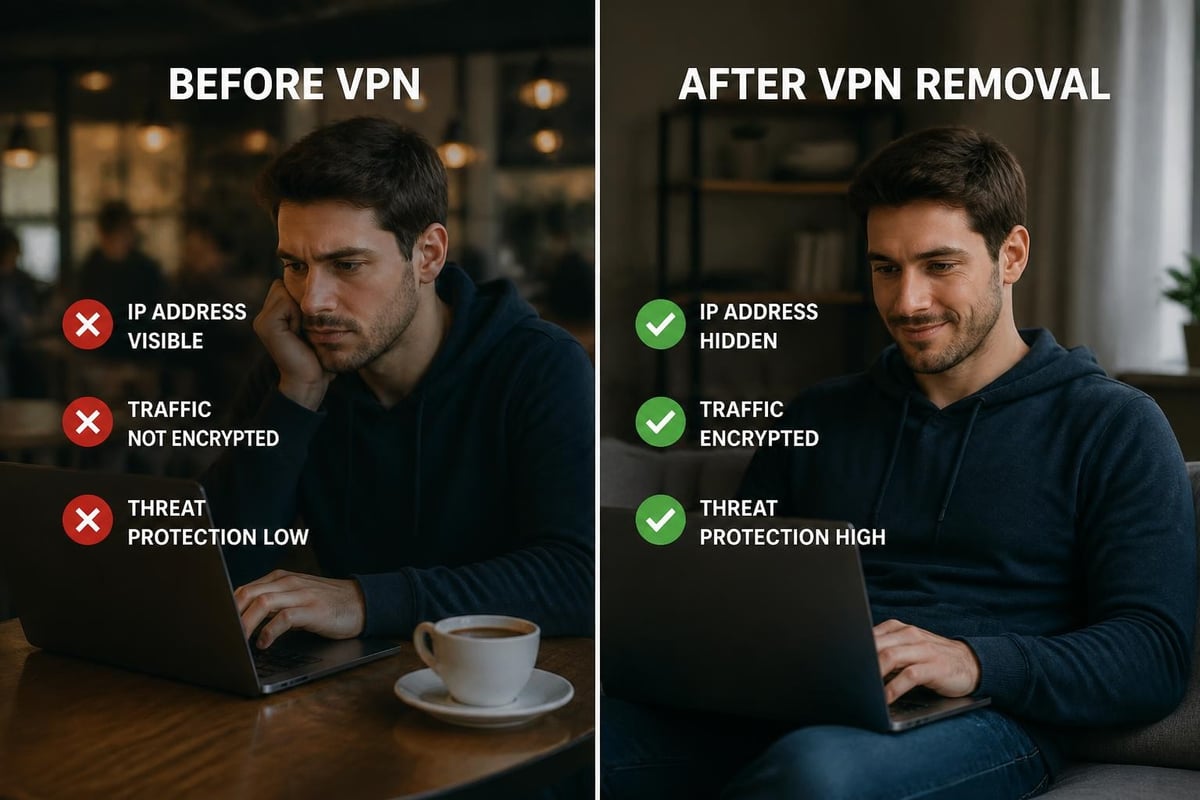
| IP Address Masking | Your real IP becomes visible | Use a different VPN service |
| Traffic Encryption | Data transmitted in clear text | HTTPS-only browsing |
| Kill Switch Protection | Network exposed if VPN drops | No alternative without VPN |
| Geo-restriction Bypass | Limited content access | Smart DNS or proxy services |
| Public Wi-Fi Security | Vulnerable to interception | Avoid sensitive activities |
Understanding VPN kill switches helps you appreciate the protection you're giving up when you remove VPN software from your device. A kill switch prevents data transmission if the VPN connection drops unexpectedly, which is particularly important for maintaining online privacy protection.
Choosing Your Next VPN Provider
If you're removing a VPN to switch providers, research your options carefully. Consider factors such as:
- Server network size and locations for reliable global access
- No-logs policies that genuinely protect your privacy
- Encryption standards including modern protocols like WireGuard
- Connection speeds that don't compromise your browsing experience
- Device support for all your Apple and other devices
For users concerned about security threats, particularly from sophisticated attackers, choosing a VPN with advanced security protocols is essential. Comparing paid VPN versus free options reveals important differences in security, privacy, and performance.
Verifying Complete VPN Removal
After following the steps to remove a VPN from an iPhone, verification ensures the removal was successful and no remnants remain that could affect your device's performance or connectivity.
Check Your VPN Status
Confirm the VPN is completely removed:
- Settings verification: Go to Settings > VPN & Device Management and confirm no VPN connections appear
- Status bar check: Look at the top of your screen; the VPN icon should not appear
- App search: Search your device for the VPN app name to ensure it's deleted
- Profile inspection: In Settings > General > VPN & Device Management, verify no configuration profiles remain
iPhone Life's step-by-step guide includes screenshots showing what the Settings screens should look like after successful VPN removal.
Test Your Network Connection
After removal, verify your internet connection works properly:
- Open Safari and browse to several different websites
- Test both Wi-Fi and cellular data connections
- Check that your public IP address shows your actual location (use a "what is my IP" website)
- Verify apps can connect to the internet without errors
- Ensure email and messaging services function normally
If you experience any connectivity issues, the network settings reset mentioned earlier typically resolves residual configuration conflicts.
Document Your Configuration
Before removing a VPN, especially if you might reinstall it later, document your settings:
- Take screenshots of the VPN configuration screens
- Note the server addresses and connection preferences
- Record any custom DNS or split tunneling settings
- Save login credentials in a secure password manager
- Export any connection logs or usage data if needed
This documentation proves valuable if you need to reinstall the VPN or configure VPN settings for iPhone again in the future.
Special Cases and Advanced Scenarios
Certain situations require specialized approaches when learning how to remove a VPN from an iPhone. These edge cases demand additional attention to ensure complete removal without damaging your device's functionality.
Removing VPNs from Supervised Devices
Supervised iPhones, common in educational institutions and large enterprises, have additional management layers that complicate VPN removal. These devices are enrolled in Apple Business Manager or Apple School Manager and carry configurations that standard users cannot modify.
Characteristics of supervised devices:
- "This iPhone is supervised and managed" message in Settings
- Restrictions on app installation and deletion
- Persistent configuration profiles
- Remote management capabilities
To remove VPNs from supervised devices, you must either contact the supervising organization or remove supervision entirely (which typically requires a full device wipe and restore).
Dealing with Corrupted VPN Profiles
Sometimes VPN profiles become corrupted, preventing normal removal. Symptoms include:
- Profile appears but cannot be opened
- "Remove Profile" button does nothing when tapped
- Device asks for passcode but doesn't accept it
- Error messages during removal attempts
Solution paths for corrupted profiles:
- Update to the latest iOS version
- Attempt removal in Safe Mode (restart while holding volume button)
- Use Apple Configurator (Mac only) to remove profiles
- Factory reset as a last resort (backup data first)
Ivanti's device management guide provides enterprise-level troubleshooting for profiles that resist standard removal methods.
Removing Multiple VPN Configurations
Users who have tested several VPN services may have multiple configurations and profiles to remove. Efficiently cleaning these requires:
- Creating a list of all installed VPN apps and profiles
- Removing each configuration one at a time
- Restarting the device between removals if conflicts occur
- Verifying each removal before proceeding to the next
- Performing a final network settings reset to clear any residual settings
This systematic approach prevents conflicts and ensures thorough removal of all VPN-related components.
Privacy After VPN Removal
Understanding how to remove a VPN from an iPhone is only part of maintaining your digital privacy. After removal, your iPhone's network traffic is no longer encrypted or routed through VPN servers, which has significant privacy implications.
Immediate Privacy Changes
Without VPN protection:
- Your internet service provider can see all websites you visit
- Public Wi-Fi operators can monitor your unencrypted traffic
- Websites and online services can identify your real IP address and location
- Advertisers and trackers can more easily build profiles of your behavior
- Government surveillance and data collection becomes easier
These privacy reductions are particularly concerning when using public Wi-Fi networks without VPN protection, where attackers can easily intercept unencrypted communications.
Maintaining Privacy Without a VPN
If you've removed your VPN but still need privacy protection, consider these alternatives:
Browser-level protections:
- Use Safari's Privacy Report and tracking prevention
- Enable "Hide IP Address" in Safari settings (iOS 15+)
- Implement content blockers and ad blockers
- Clear cookies and browsing data regularly
Network-level alternatives:
- Configure encrypted DNS (DNS over HTTPS)
- Use the Tor Browser for anonymous browsing
- Connect only to HTTPS websites
- Implement firewall rules if on a managed network
Behavioral changes:
- Avoid public Wi-Fi for sensitive activities
- Use cellular data for banking and personal information
- Enable two-factor authentication on all accounts
- Review app permissions and data sharing settings
While these measures help, they don't provide the comprehensive protection of a quality VPN service. Understanding how to protect your privacy online involves multiple layers of security, with VPNs forming a critical component.
Re-installing or Switching VPN Services
Many users learning how to remove a VPN from an iPhone do so because they're switching to a different provider or need to reinstall their current VPN to resolve issues. This process requires careful execution to avoid configuration conflicts.
Clean Installation Best Practices
Before installing a new VPN or reinstalling your current one:
- Complete the removal process using all methods described above
- Restart your iPhone to clear temporary configurations
- Reset network settings if you experienced issues with the previous VPN
- Update iOS to the latest version for compatibility
- Download the new VPN app from the official App Store only
Installing the new VPN app after thorough removal prevents conflicts between old and new configurations. This is particularly important when switching between different VPN providers that use different connection protocols.
Comparing VPN Options
When selecting a new VPN service, evaluate these critical factors:
| Feature | Why It Matters | Questions to Ask |
|---|---|---|
| Server Network | Access and speed | How many servers? Where are they located? |
| Encryption | Security strength | What protocols are supported? AES-256? |
| No-Logs Policy | Privacy protection | Is it independently audited? Where is the company based? |
| Connection Speed | User experience | Are there speed limitations? Server load balancing? |
| Device Limit | Multi-device use | How many simultaneous connections? |
| Customer Support | Problem resolution | 24/7 availability? Response time? |
Services like ZioFree provide transparent information about server networks, encryption standards, and privacy policies, making it easier to make informed decisions.
Android and Cross-Platform Considerations
If you use multiple devices, understanding how to remove VPNs across platforms ensures consistent security. The process for removing VPN on Android differs from iOS, and maintaining synchronized protection across devices requires planning:
- Choose VPN services with native apps for all your platforms
- Use the same account credentials across devices
- Configure consistent security settings
- Enable automatic updates on all devices
- Test connectivity after installation on each platform
Cross-platform consistency ensures you don't accidentally create security gaps when switching between your iPhone and other devices.
Knowing how to remove a VPN from an iPhone completely requires understanding the different installation methods, from simple app deletion to enterprise profile removal. Whether you're switching providers, troubleshooting issues, or no longer need VPN protection, following the proper removal steps ensures your device functions optimally without leftover configurations. However, removing VPN protection leaves your device vulnerable to privacy threats and data interception, particularly on public networks. If you're ready to experience reliable, high-speed VPN protection with strong encryption and a strict no-logs policy, ZioFree delivers the security and performance your iPhone deserves without the complications that lead to removal in the first place.