



Removing VPN profiles from your Android device is a fundamental skill that every smartphone user should master. Whether you're switching to a different VPN service, troubleshooting connection issues, or simply cleaning up unused configurations, knowing how to android remove VPN settings properly ensures your device maintains optimal performance and security. This comprehensive guide walks you through every method available on Android devices, from basic profile deletion to advanced enterprise management scenarios.
Understanding Android VPN Configurations
Android devices store VPN configurations in several different ways, depending on how the profile was created. Native Android VPN profiles, third-party VPN apps, and enterprise-managed VPNs each require different removal approaches.
Types of VPN Profiles on Android
Android supports multiple VPN implementation methods, and understanding these differences is crucial before attempting removal. The Android VPN framework allows both built-in configurations and app-based VPN services to coexist on your device.
Manual VPN profiles are configurations you create directly in Android settings using protocols like PPTP, L2TP/IPSec, or IPSec Xauth PSK. These store credentials and server information in your device's network settings.
App-based VPN services like ZioFree use the VpnService API to establish connections without requiring manual configuration. These apps create their own profiles and manage connections independently.
Enterprise VPN profiles are deployed through Mobile Device Management (MDM) solutions and often include always-on VPN requirements that prevent simple removal.
Why You Might Need to Android Remove VPN
Several scenarios require removing VPN configurations from your Android device:
- Performance issues: Outdated or misconfigured VPN profiles can slow down your connection or cause apps to malfunction
- Security updates: Switching to a more secure VPN service with better encryption protocols
- Device cleanup: Removing unused profiles that accumulate over time
- Troubleshooting: Eliminating conflicting configurations when experiencing connectivity problems
- Privacy concerns: Ensuring complete removal of VPN credentials when changing services
Understanding when and why to remove VPN profiles helps you maintain better control over your device's network security.
How to Remove Built-In VPN Profiles
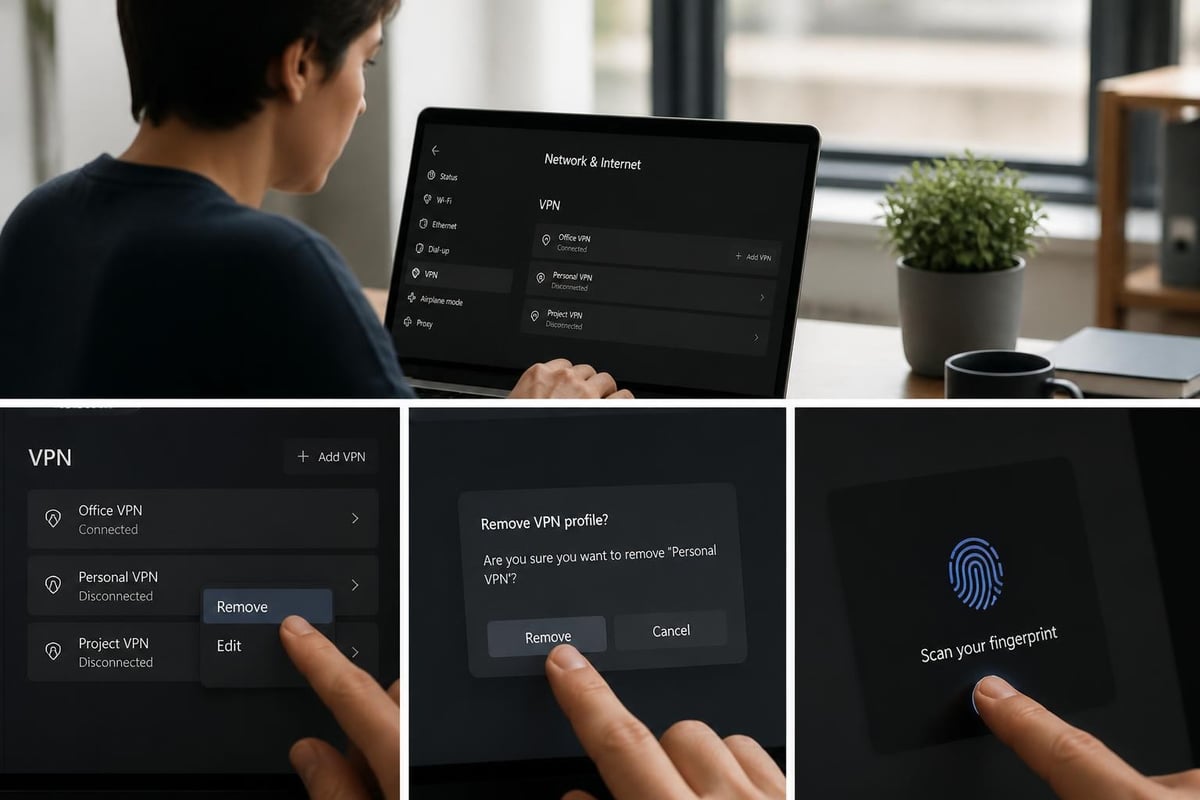
The most straightforward method to android remove VPN configurations involves using Android's native settings interface. This approach works for manually configured VPN profiles that you created through the system settings.
Step-by-Step Profile Removal
- Open Settings on your Android device and navigate to "Network & internet" or "Connections" (terminology varies by manufacturer)
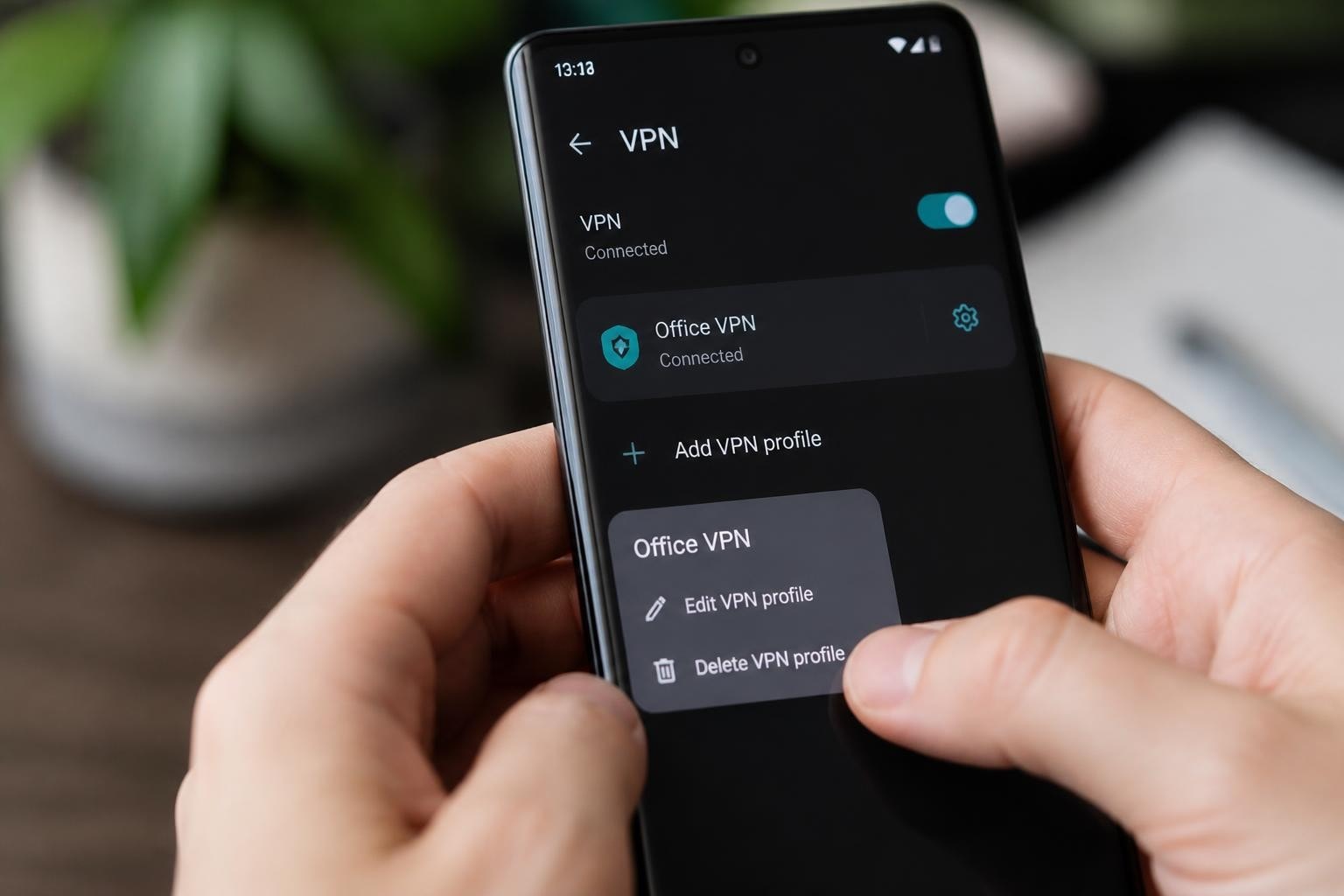
- Tap VPN to view all configured profiles on your device
- Locate the profile you want to remove from the list of saved configurations
- Tap the gear icon or settings button next to the VPN profile name
- Select "Forget" or "Delete" to remove the configuration permanently
- Confirm removal when prompted to ensure you want to delete the profile
The exact menu names and navigation paths differ slightly across Android versions and device manufacturers. Samsung devices often use "Connections" while stock Android uses "Network & internet."
Removing Always-On VPN Settings
Always-on VPN is a security feature that maintains constant VPN connectivity, automatically reconnecting if the connection drops. Before you can android remove VPN profiles configured as always-on, you must first disable this setting.
Navigate to Settings → Network & internet → VPN and tap the settings gear icon. Look for "Always-on VPN" toggle and disable it. Some devices also offer "Block connections without VPN" which must be turned off before profile removal.
For users seeking reliable VPN services with easy configuration management, ZioFree provides straightforward setup and removal processes while maintaining robust security features.
Uninstalling VPN Applications
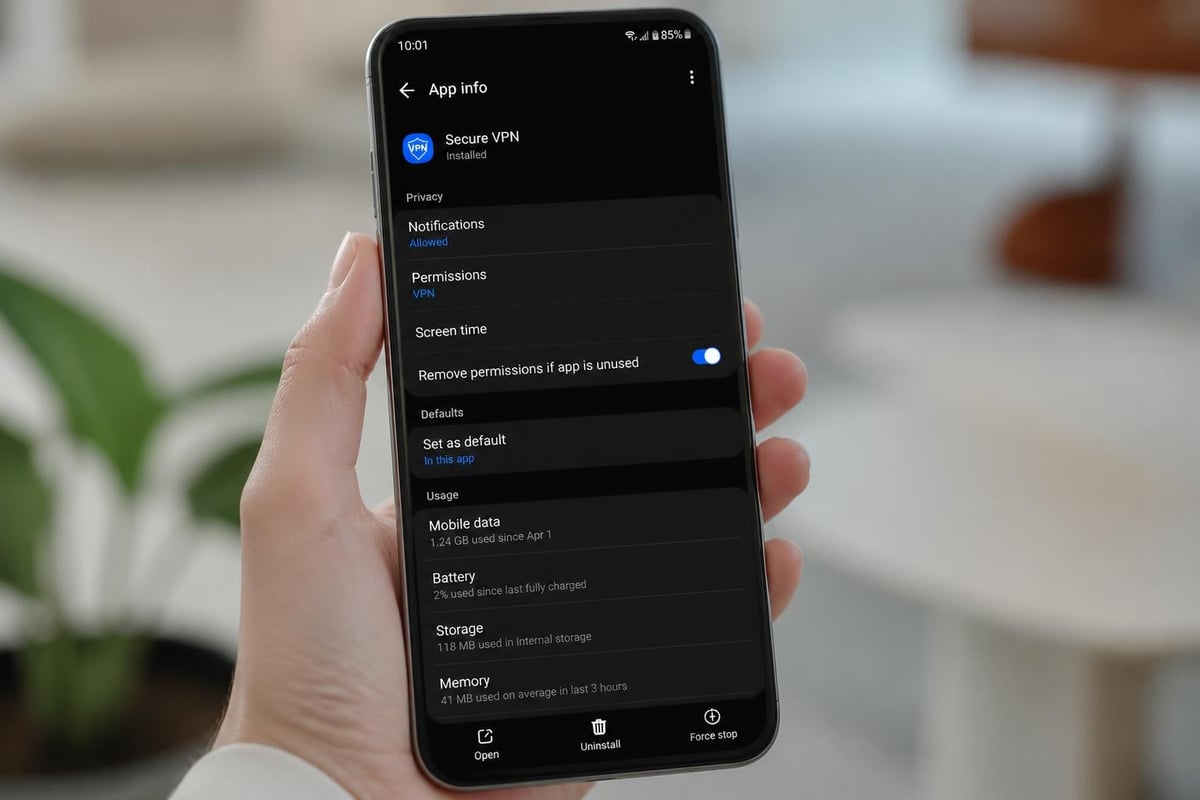
Third-party VPN apps handle connections differently than built-in profiles. When you android remove VPN apps, the process involves standard application uninstallation, which typically removes associated configurations automatically.
Complete App-Based VPN Removal
Standard uninstallation process:
- Open your device's app drawer or Settings → Apps
- Locate the VPN application in your installed apps list
- Tap the VPN app and select "Uninstall"
- Confirm removal when prompted
- Restart your device to clear any residual VPN processes
Most VPN apps clean up their configurations during uninstallation. However, some apps may leave behind cached data or settings.
Clearing Residual VPN Data
After uninstalling a VPN app, you should verify complete removal:
| Verification Step | Action Required | Purpose |
|---|---|---|
| Check VPN Settings | Navigate to Network & internet → VPN | Confirm no orphaned profiles remain |
| Review App Permissions | Settings → Privacy → Permission manager | Ensure VPN permissions are cleared |
| Inspect Running Services | Settings → Developer options → Running services | Verify no VPN processes are active |
| Clear DNS Settings | Reset Private DNS if custom settings were used | Restore default DNS configuration |
The Cloudflare 1.1.1.1 documentation provides additional context on how DNS and VPN features interact on Android, which can help identify any remaining configuration elements.
Managing Enterprise and MDM-Controlled VPNs
Corporate-managed Android devices often have VPN profiles installed through Mobile Device Management systems. These configurations require different removal procedures and may involve IT administrator assistance.
Understanding Enterprise VPN Restrictions
Enterprise VPNs deployed via MDM platforms like Microsoft Intune, VMware Workspace ONE, or Google Workspace create device policies that can prevent standard removal methods. The Android Enterprise networking documentation explains how work profiles isolate corporate data and network configurations.
Work profile VPNs operate independently from your personal profile. You cannot android remove VPN configurations from work profiles without administrator permission or by removing the entire work profile.
Device-wide enterprise VPNs installed by device administrators require policy changes before removal becomes possible.
Removing Work Profile VPNs
If your device has a work profile (indicated by a briefcase icon on certain apps), the VPN may be confined to that profile:
- Navigate to Settings → Accounts or Users & accounts
- Select "Work profile" or your organization's account
- Choose "Remove work profile" to delete all corporate data and configurations
- Confirm removal and enter your device password
Warning: This action removes all work-related apps, data, and accounts. Coordinate with your IT department before proceeding.
Requesting Administrative VPN Removal
For device-wide enterprise VPNs that don't use work profiles, contact your IT administrator. They can use the VpnManager API or their MDM console to remove the profile remotely.
Microsoft Intune administrators can modify VPN profiles through their console, pushing updated policies that remove VPN configurations from enrolled devices.
Troubleshooting VPN Removal Issues
Sometimes attempting to android remove VPN profiles results in errors or the configuration reappears after deletion. These scenarios require additional troubleshooting steps.
Common Removal Obstacles
Certificate-based VPNs may prevent removal if the underlying certificate hasn't been deleted. Navigate to Settings → Security → Encryption & credentials → User certificates, and remove any certificates associated with the VPN service.
System VPN apps pre-installed by device manufacturers may only be disabled, not uninstalled. Go to Settings → Apps → Show system apps, locate the VPN app, and select "Disable."
Permission conflicts can block removal attempts. Check Settings → Apps → Special access → VPN to see which apps have VPN permission and revoke access before attempting removal.
Factory Reset as Last Resort
If standard methods fail to android remove VPN configurations, a factory reset provides a clean slate. Before proceeding:
- Backup all personal data including photos, contacts, and documents
- Note your Google account credentials for device setup after reset
- Remove your Google account from the device (Settings → Accounts)
- Perform factory reset via Settings → System → Reset options → Erase all data
Factory reset should only be used when all other removal methods have failed, as it erases everything on your device.
For those considering alternatives to problematic VPN services, exploring options like best Android VPN software can help you find reliable solutions that offer easier management.
Security Considerations After VPN Removal
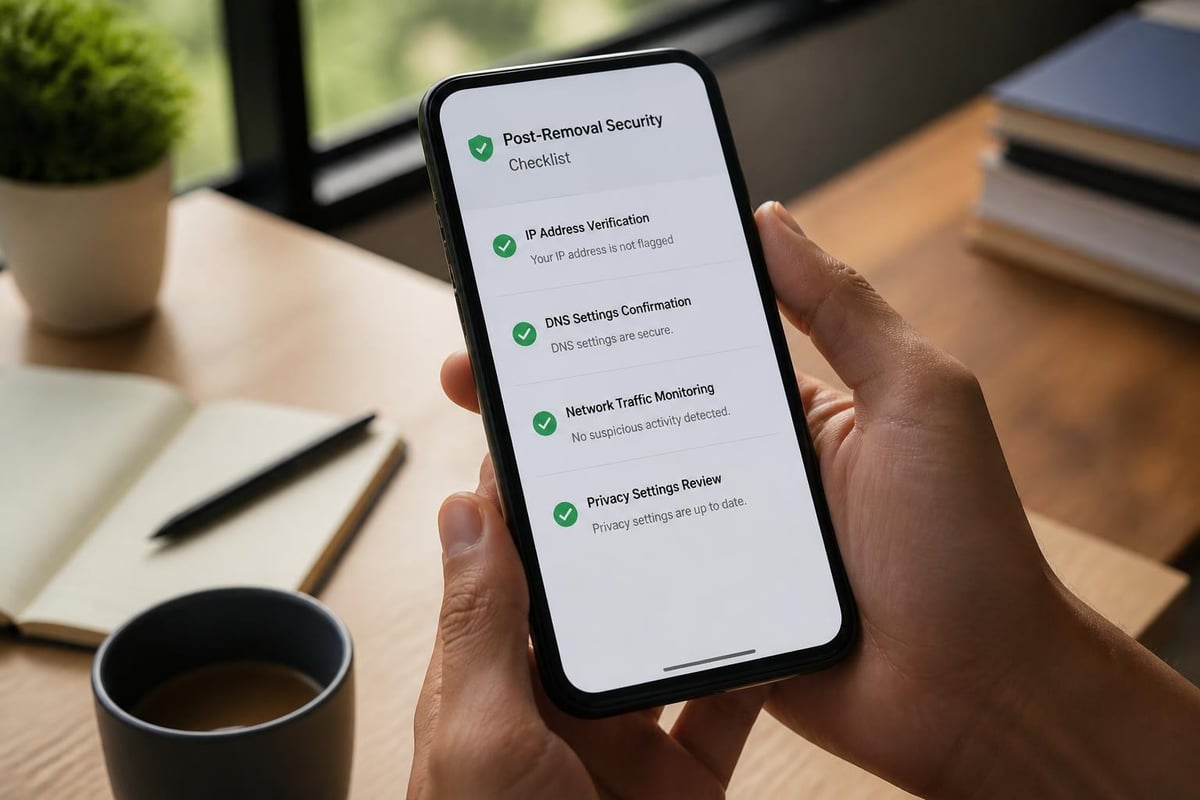
Successfully removing a VPN profile is only part of maintaining good security hygiene on your Android device. Post-removal verification ensures no security gaps remain.
Verifying Complete VPN Removal
Network traffic inspection confirms no VPN tunnels remain active:
- Visit a "What is my IP" website to verify your real IP address is visible
- Check that your internet service provider's DNS servers are active
- Monitor data usage to ensure no unexpected background VPN connections
Configuration verification steps:
- Review Settings → Network & internet → VPN for any remaining profiles
- Check Settings → Apps for leftover VPN applications
- Inspect Settings → Security → Trust agents for VPN-related entries
- Verify Settings → Network & internet → Private DNS shows expected settings
Protecting Privacy After VPN Removal
Removing a VPN exposes your internet traffic to your ISP and potentially malicious actors on public networks. The EFF's Android privacy guide provides comprehensive guidance on maintaining privacy without a VPN.
Immediate actions after VPN removal:
- Enable Private DNS with a trusted provider
- Avoid public Wi-Fi networks until you install a replacement VPN
- Review app permissions that may leak location or browsing data
- Clear browser cache and cookies from the period when using the removed VPN
Consider whether you need to hide your IP address and what alternatives exist if you're not immediately installing a new VPN service.
Device-Specific VPN Removal Procedures
Different Android device manufacturers implement custom interfaces that affect how you android remove VPN profiles. Understanding these variations ensures successful removal regardless of your device brand.
Samsung Galaxy Devices
Samsung's One UI interface organizes VPN settings differently than stock Android:
- Navigate to Settings → Connections → More connection settings → VPN
- Tap the gear icon next to the VPN profile you want to remove
- Select Delete VPN profile and confirm
Samsung Knox-enabled devices have additional security layers. The Samsung Knox documentation details how enterprise VPNs integrate with Knox security features, which may require additional steps for removal.
Google Pixel and Stock Android
Pixel devices running stock Android offer the most straightforward VPN removal process:
- Settings → Network & internet → VPN
- Tap the settings icon beside the profile
- Select Forget VPN to remove the configuration
Stock Android closely follows Google's design guidelines, making the process consistent with official documentation.
OnePlus, Xiaomi, and Other Manufacturers
These manufacturers use heavily customized Android versions:
| Manufacturer | VPN Path | Removal Option |
|---|---|---|
| OnePlus (OxygenOS) | Settings → Wi-Fi & Network → VPN | Delete |
| Xiaomi (MIUI) | Settings → Connection & sharing → VPN | Long-press → Delete |
| Huawei (EMUI) | Settings → Wireless & networks → VPN | Tap profile → Delete |
| Oppo (ColorOS) | Settings → Connection & sharing → VPN | Manage → Delete |
Each manufacturer's custom Android skin requires navigating slightly different menu structures to android remove VPN profiles successfully.
Replacing Your VPN Service
After removing an old VPN configuration, most users need to install a replacement service to maintain privacy and security. Choosing the right VPN requires evaluating several factors.
Evaluating New VPN Services
When selecting a replacement VPN after you android remove VPN profiles from previous services, prioritize these features:
Security and encryption:
- Strong encryption protocols (WireGuard, OpenVPN, IKEv2)
- No-logs policy with third-party audits
- Kill switch functionality to prevent data leaks
- DNS leak protection
Performance metrics:
- Server network size and geographic distribution
- Connection speeds and bandwidth limits
- Number of simultaneous device connections
Privacy commitments:
- Jurisdiction and data retention laws
- Company ownership transparency
- Payment options that protect anonymity
For users concerned about privacy and security threats, ZioFree's commitment to protecting users from sophisticated hacking attempts makes it a strong choice. Learn more about ZioFree's approach to privacy protection.
Installing Your New VPN
Once you've selected a replacement VPN service:
- Download the official app from Google Play Store
- Create an account and verify your subscription
- Grant necessary permissions when prompted
- Select your preferred server location
- Enable always-on VPN if desired for continuous protection
For specific setup guidance, review resources like free VPN software for Android to understand installation best practices.
Preventing Future VPN Configuration Issues
Proper VPN management prevents the accumulation of problematic configurations that require frequent removal. Implementing good practices saves time and maintains device performance.
VPN Management Best Practices
Limit VPN installations to one or two trusted services rather than testing multiple providers simultaneously. Each VPN app consumes system resources and increases the risk of configuration conflicts.
Document your configurations by keeping records of VPN settings, including server addresses, protocols used, and authentication methods. This information proves valuable when troubleshooting issues.
Regular maintenance schedule:
- Monthly review of installed VPN profiles
- Quarterly evaluation of VPN performance and security
- Immediate removal of unused or outdated configurations
- Annual security audit of network settings
Understanding VPN Permissions
When installing VPN apps, pay attention to requested permissions. Excessive permission requests may indicate privacy concerns or unnecessary access to device functions.
Essential VPN permissions:
- Network access and control
- VPN service establishment
- Run at device startup
Questionable permissions requiring scrutiny:
- Access to contacts or call logs
- Location tracking when not necessary for server selection
- Storage access beyond configuration files
The Android Developer documentation on VPN explains the technical requirements for legitimate VPN services, helping users distinguish necessary permissions from excessive requests.
For those interested in specific VPN configurations, explore topics like WireGuard split tunneling to understand advanced features that might affect removal procedures.
Enterprise Deployment and Removal Automation
Organizations managing multiple Android devices benefit from automated VPN deployment and removal processes. Understanding these enterprise capabilities helps IT administrators and users in managed environments.
Programmatic VPN Management
IT departments can automate the process to android remove VPN profiles across device fleets using MDM platforms. These tools provide centralized control over network configurations.
Enterprise management capabilities:
- Remote VPN profile deployment and removal
- Policy-based always-on VPN enforcement
- Certificate lifecycle management
- Per-app VPN assignment for specific applications
- Compliance monitoring and reporting
The Android Management API enables organizations to create policies that automatically install or remove VPN configurations based on device compliance status or user group membership.
Bulk Removal Scenarios
Organizations may need to remove VPN profiles from multiple devices simultaneously when:
- Migrating to a new VPN provider
- Responding to security incidents
- Updating network infrastructure
- Offboarding employees or reassigning devices
Automated removal process:
- Create a policy in your MDM console removing the target VPN profile
- Assign the policy to relevant device groups or users
- Push the policy update to enrolled devices
- Monitor deployment status through MDM reporting
- Verify removal through compliance checks
Microsoft Intune administrators can reference VPN profile management documentation for detailed procedures on pushing configuration changes that remove VPN settings.
Privacy Implications of VPN Removal
Understanding the privacy consequences of removing VPN protection helps users make informed decisions about their network security posture.
Exposure Risks After VPN Removal
When you android remove VPN configurations without installing a replacement, your internet traffic becomes visible to multiple parties:
Internet Service Provider (ISP) can monitor all your browsing activity, DNS queries, and connection metadata. ISPs in many jurisdictions retain this data for extended periods.
Network administrators on corporate or public Wi-Fi networks can intercept unencrypted traffic and monitor your online activities.
Government surveillance programs may collect internet traffic data at network infrastructure points, particularly in jurisdictions with broad surveillance authority.
Malicious actors on public networks can employ man-in-the-middle attacks to intercept sensitive data transmitted without VPN encryption.
Temporary Privacy Measures
If you must operate without VPN protection temporarily after removal:
- Use HTTPS-only mode in your browser
- Enable Android's Private DNS feature with a trusted provider
- Avoid accessing sensitive accounts or transmitting confidential information
- Limit internet use on public Wi-Fi networks
- Use encrypted messaging apps for communications
Understanding how to protect your online privacy provides additional strategies for maintaining security during VPN transitions.
Frequently Asked Questions About VPN Removal
Users commonly encounter specific scenarios and questions when attempting to android remove VPN profiles from their devices.
Will Removing VPN Delete My Account?
Removing VPN profiles or uninstalling VPN apps from your Android device does not delete your account with the VPN service provider. Your subscription remains active, and you can reinstall the app or configure new profiles at any time using your existing credentials.
Account deletion requires separately contacting the VPN provider or using their account management portal.
Can I Remove VPN Without Losing Internet Access?
Yes, removing VPN configurations restores your device to direct internet connectivity through your mobile carrier or Wi-Fi network. Your internet access will continue normally, but your traffic will no longer be encrypted or routed through VPN servers.
Some enterprise environments enforce always-on VPN with "block connections without VPN" enabled. In these cases, removing the VPN profile will block internet access until you disable the blocking setting or install an alternative VPN.
Does VPN Removal Improve Battery Life?
Active VPN connections consume battery power due to constant encryption overhead and maintained network connections. However, simply having VPN profiles configured without active connections has negligible battery impact.
If you android remove VPN apps that run background services or maintain persistent connections, you may notice modest battery life improvements. The actual benefit depends on the specific VPN app's efficiency and your usage patterns.
For users seeking efficient VPN services that balance security with performance, exploring fast VPN service options can help identify solutions optimized for mobile battery conservation.
Successfully removing VPN profiles from your Android device ensures clean network configurations and optimal performance. Whether you're switching providers, troubleshooting issues, or managing enterprise deployments, following proper removal procedures prevents lingering configurations that could compromise your privacy or connectivity.
When you're ready to upgrade to a VPN service that prioritizes your security and privacy, ZioFree offers high-speed connections backed by strong encryption and a strict no-logs policy. With our global server network and advanced security protocols designed to protect against sophisticated threats, you can browse with confidence while maintaining the flexibility to manage your VPN configurations as needed.