




Chromebook users face unique challenges when implementing privacy protection, especially when seeking cost-effective solutions. Unlike traditional Windows or Mac systems, ChromeOS operates with a distinct architecture that affects how virtual private networks function. Whether you're looking for a vpn on chromebook free solution or evaluating premium options, understanding the compatibility landscape, installation methods, and security implications is essential for making informed decisions about your digital privacy in 2026.
Understanding VPN Compatibility with ChromeOS
ChromeOS supports multiple VPN implementation methods, each with distinct advantages and limitations. The three primary approaches include native VPN profiles, Android applications through the Play Store, and Chrome browser extensions. Native configurations leverage ChromeOS's built-in L2TP/IPsec and OpenVPN support, requiring manual setup but offering system-wide protection. This method routes all device traffic through the encrypted tunnel, covering every application and service running on your Chromebook.
Android VPN apps represent the most common approach for users seeking a vpn on chromebook free. Since 2016, most Chromebooks support the Google Play Store, enabling installation of Android applications. These apps typically provide user-friendly interfaces with one-click connection options. However, understanding how Android apps run on ChromeOS reveals important nuances about sandboxing and virtual machine boundaries that can affect VPN coverage.
Chrome Extension Limitations
Browser extensions offer the simplest installation process but provide the most limited protection. These lightweight solutions only encrypt traffic within the Chrome browser itself, leaving other applications unprotected. For users who primarily work within Chrome and web applications, this may suffice. However, anyone using Android apps, Linux containers, or system-level services requires broader protection.
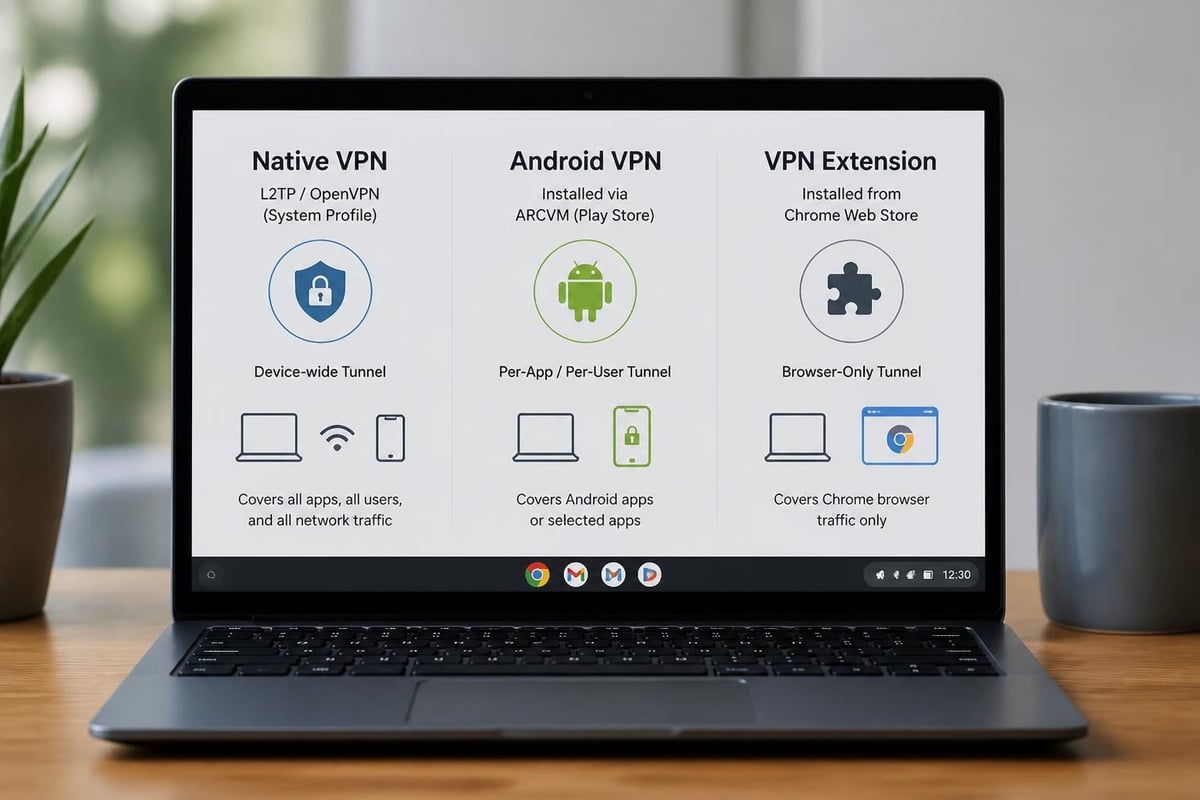
The distinction matters significantly for security-conscious users. A browser extension won't protect your email client, file syncing services, or background system updates. Understanding these architectural differences helps you select the appropriate vpn on chromebook free option for your specific use case and threat model.
Free VPN Options for Chromebook Users
| Provider Type | Coverage Scope | Data Limits | Setup Complexity | Best For |
|---|---|---|---|---|
| Native OpenVPN | System-wide | Unlimited* | High | Technical users |
| Android Free Apps | System-wide | 500MB-10GB/month | Low | Casual browsing |
| Chrome Extensions | Browser only | Varies | Very low | Web-only users |
| Educational/Work | System-wide | Unlimited | Managed | School/enterprise |
*Unlimited when self-hosting or using community servers
Several reputable providers offer limited free tiers suitable for Chromebook users. These services typically restrict monthly bandwidth, server selection, or connection speeds while maintaining robust encryption standards. ProtonVPN, Windscribe, and Hide.me provide free plans with varying data allowances, all offering Android applications compatible with ChromeOS. When evaluating a vpn on chromebook free service, prioritize providers with transparent privacy policies and established reputations.
Self-hosted solutions present another avenue for technically proficient users. Running your own OpenVPN or WireGuard server on a home network or cloud provider eliminates third-party trust concerns entirely. This approach requires more technical knowledge but offers unlimited bandwidth and complete control over your privacy infrastructure. For users concerned about potential security risks from state-sponsored actors, self-hosting may provide additional assurance.
Evaluating Free Service Limitations
Free VPN services sustain operations through various business models. Some display advertisements, others upsell premium features, and a few mine anonymized usage data. Before committing to any vpn on chromebook free option, carefully review the provider's privacy policy and terms of service. Reputable services explicitly state their data collection practices and funding mechanisms. Never trust a free VPN that lacks transparent documentation about its business model.
Data caps represent the most common restriction on free plans. A 500MB monthly allowance suits occasional secure browsing sessions but proves insufficient for streaming or daily use. Users requiring a no-log VPN with unlimited bandwidth should consider budget-friendly premium services that deliver comprehensive privacy protection without the constraints of free tiers.
Step-by-Step Installation Methods
The practical setup process for VPNs on Chromebooks varies depending on your chosen approach. For Android applications, the process mirrors smartphone installation: open the Play Store, search for your VPN provider, install the app, and log in with your credentials. Most modern Chromebooks support this method seamlessly, though older models or educational devices may have Play Store access restricted by administrators.
Installing Android VPN Applications
- Verify Play Store availability by checking your Chromebook's app launcher for the Google Play Store icon
- Search for your VPN provider using the official app name to avoid fraudulent imitations
- Install and open the application, granting necessary permissions when prompted
- Create an account or log in with existing credentials from your chosen provider
- Select a server location and initiate the connection through the app interface
- Confirm connection status by checking the key icon in your system tray
This method works for the majority of vpn on chromebook free services and provides the most intuitive user experience. The Android app approach ensures system-wide protection, covering all applications and services running on your device. However, be aware that some apps may request permissions that exceed typical VPN requirements, such as access to files or contacts.
Configuring Native VPN Profiles
Advanced users may prefer manual configuration for greater control and transparency. ChromeOS natively supports L2TP over IPsec and OpenVPN protocols without requiring additional software. Navigate to Settings > Network > VPN and select "Add VPN." You'll need specific configuration details from your provider, including server addresses, authentication credentials, and encryption certificates.
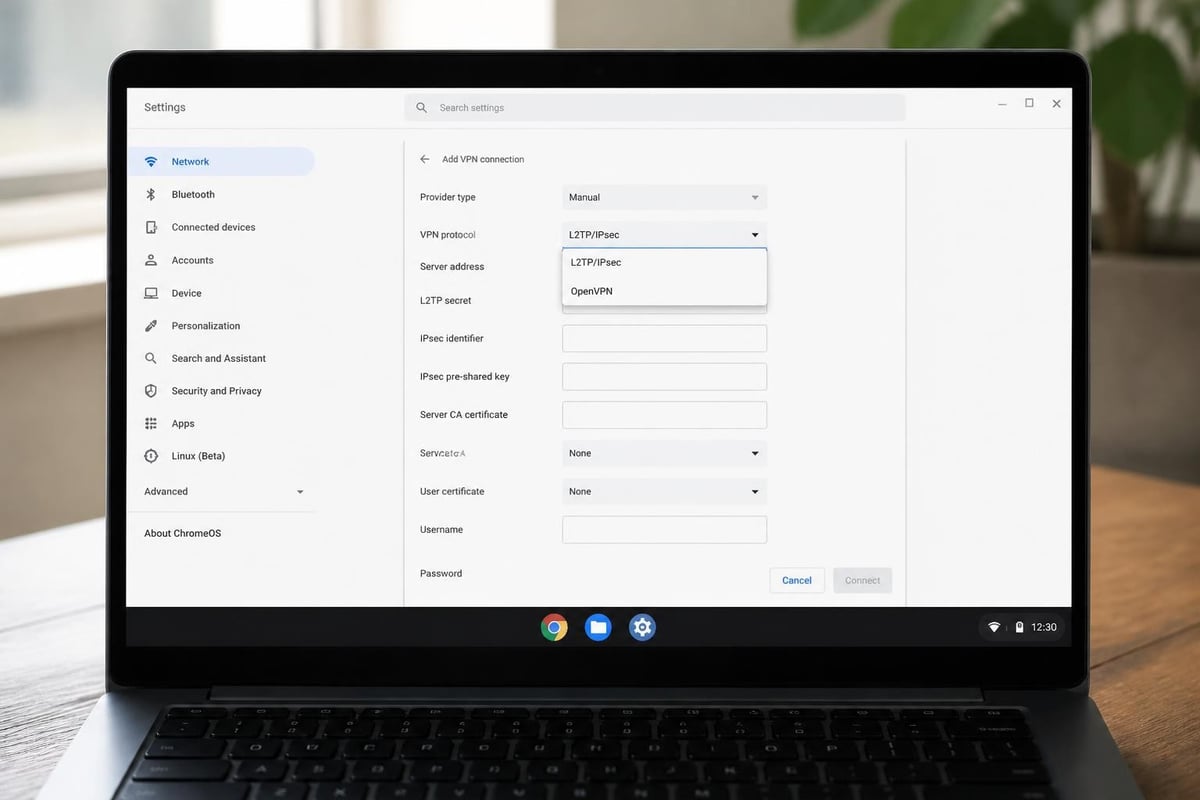
- Server hostname or IP address provided by your VPN service
- Authentication type (pre-shared key, certificate, or username/password)
- CA certificate for OpenVPN configurations (downloaded from your provider)
- User certificate and private key if using certificate-based authentication
Manual configuration eliminates dependency on third-party applications but requires technical comfort with networking concepts. This approach proves particularly valuable when seeking a secure VPN solution without installing additional software that could introduce vulnerabilities or performance overhead.
Security Considerations and Privacy Implications
Free VPN services introduce distinct privacy considerations that differ from premium offerings. The fundamental principle remains: if you're not paying for the product, you are the product. Some free providers monetize user data through targeted advertising partnerships, while others impose such severe bandwidth limitations that practical usability suffers. When selecting a vpn on chromebook free option, scrutinize the provider's business model and jurisdiction.
Encryption standards should never be compromised, regardless of cost. Reputable free services maintain the same cryptographic protocols as their premium tiers, utilizing AES-256 encryption and secure key exchange mechanisms. Verify that your chosen provider supports modern protocols like OpenVPN, WireGuard, or IKEv2/IPsec. Outdated protocols like PPTP offer minimal security and should be avoided entirely.
Managing Chromebooks in Educational Settings
School-issued Chromebooks often operate under strict administrative policies that restrict VPN usage entirely. Administrators can configure network settings through Google Workspace policies, blocking VPN applications or restricting manual configurations. Students should recognize that attempting to circumvent these restrictions may violate acceptable use policies.
For users concerned about surveillance or monitoring on managed devices, understanding the privacy implications becomes critical. School administrators maintain visibility into device activity, regardless of VPN use. The VPN protects your traffic from external observers like ISPs or network operators but cannot prevent monitoring by the organization that manages your Chromebook.
Performance Optimization and Troubleshooting
Connection speed represents a common concern when using a vpn on chromebook free. Free services often prioritize bandwidth for premium subscribers, resulting in reduced speeds during peak usage periods. Server proximity significantly affects performance-selecting geographically closer servers typically delivers faster connections. Many Android VPN apps include automated server selection features that optimize for current network conditions.
Common Issues and Solutions
DNS leaks occur when your Chromebook bypasses the VPN tunnel for domain name resolution, exposing your browsing activity despite an active VPN connection. Test for leaks using online diagnostic tools after connecting. If leaks appear, check your VPN provider's DNS settings or enable their leak protection features. Some VPN services include automatic DNS configuration that prevents this issue.
Split tunneling allows selective application routing, where some apps use the VPN while others access the internet directly. This feature improves performance for applications that don't require privacy protection but may not be available in all Android VPN apps on ChromeOS. Check your provider's settings if you need this functionality.
| Issue | Probable Cause | Solution |
|---|---|---|
| Connection fails | Incorrect credentials | Verify username/password in app settings |
| Slow speeds | Distant server | Select closer server location |
| Frequent disconnects | Network instability | Enable auto-reconnect feature |
| App won't install | Managed device | Contact administrator |
| No internet after connect | DNS misconfiguration | Reset network settings |
Battery consumption increases when running continuous VPN connections. Android apps particularly affect battery life on Chromebooks, as the ARCVM container requires additional system resources. For users seeking a fast VPN that minimizes performance impact, lightweight protocols like WireGuard offer significant efficiency advantages over older implementations.
Advanced Configuration Options
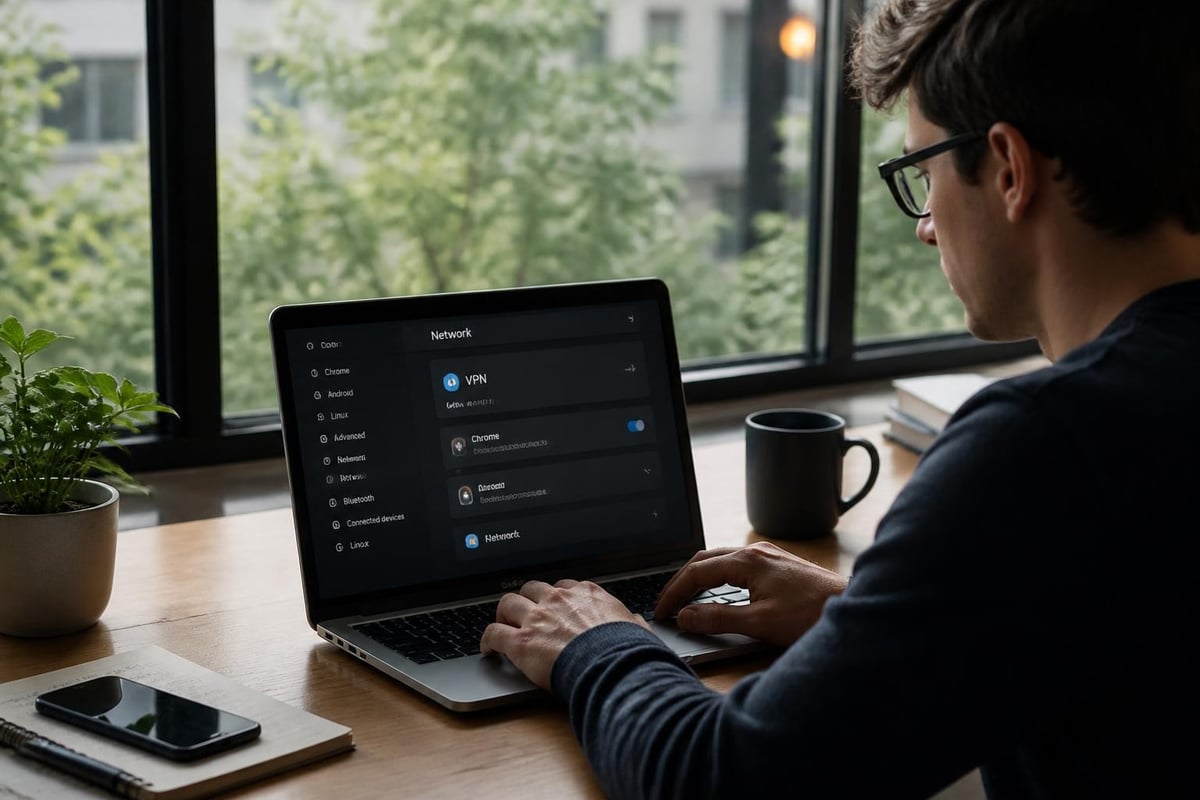
Power users can leverage ChromeOS's Linux container support (Crostini) for sophisticated VPN configurations unavailable through standard methods. Installing OpenVPN or WireGuard clients within the Linux environment provides command-line control and advanced routing capabilities. This approach requires enabling Linux development mode and comfort with terminal commands but unlocks professional-grade networking features.
Linux Container VPN Setup
The comprehensive guide to VPN setup on Chromebooks covers Linux-based configurations for advanced users. Within the Linux terminal, install your preferred VPN client using standard package managers. For Debian-based containers (the ChromeOS default), apt commands install necessary software packages. This method provides maximum flexibility but operates independently from the main ChromeOS system.
- Install OpenVPN:
sudo apt update && sudo apt install openvpn - Import configuration files from your provider
- Launch connections manually or configure automatic startup
- Monitor connection status through terminal output
Traffic routing complexity increases with Linux container VPNs. By default, the container's network traffic may not affect the broader ChromeOS system or Android apps. Configuring system-wide routing requires additional iptables rules and network configuration beyond typical user requirements. Most users seeking a vpn on chromebook free solution will find Android apps or native profiles more straightforward.
Choosing Between Free and Premium Services
The decision between free and paid VPN services ultimately depends on usage patterns, privacy requirements, and budget constraints. Free options adequately serve users with minimal data needs-occasional secure browsing sessions at coffee shops or periodic access to region-restricted content. However, anyone requiring daily protection, unlimited bandwidth, or the fastest possible speeds should consider affordable premium alternatives.
Premium services typically include additional features beyond basic encryption: dedicated servers for streaming, specialized protocols optimized for speed, and customer support channels. When evaluating whether to upgrade from a vpn on chromebook free plan, calculate your actual usage against free tier limitations. If you consistently exhaust monthly data caps or experience frustrating slowdowns, the modest cost of budget premium services delivers substantial value.
Evaluating Provider Trustworthiness
Transparency distinguishes reputable VPN providers from questionable operations. Independent security audits, published transparency reports, and clear privacy policies indicate a provider's commitment to user protection. For users particularly concerned about privacy and security, providers that undergo regular third-party audits provide verifiable assurance that their no-logs claims match actual practices.
Jurisdiction matters for privacy-focused users. Providers operating in countries with strong data retention laws or intelligence-sharing agreements may face legal obligations to collect or surrender user data. The UK NCSC guidance on secure remote access emphasizes the importance of understanding jurisdictional implications when selecting security services.
Privacy Protection Beyond VPN Technology
While VPN technology provides crucial privacy protection, comprehensive digital security requires a layered approach. Combining your vpn on chromebook free solution with additional privacy measures creates robust defense against various threats. Browser fingerprinting, tracking cookies, and unencrypted messaging all pose privacy risks that VPNs alone cannot address.
Privacy-focused browser extensions complement VPN protection by blocking trackers, preventing fingerprinting, and enforcing HTTPS connections. HTTPS Everywhere, Privacy Badger, and uBlock Origin represent well-regarded tools that enhance baseline privacy. Together with VPN encryption, these extensions create meaningful barriers against mass surveillance and commercial tracking.
Multi-Factor Authentication and Account Security
VPN accounts themselves require proper security practices. Enable multi-factor authentication on your VPN provider account to prevent unauthorized access. If attackers compromise your credentials, they could monitor your VPN usage patterns or even redirect your traffic through malicious servers. Strong, unique passwords stored in a reputable password manager protect both your VPN account and the sensitive services you access through it.
Regular software updates maintain security on your Chromebook. ChromeOS automatically downloads and installs system updates, including critical security patches. Ensure this feature remains enabled, and restart your device when prompted to apply updates. Keeping your Android VPN app current ensures you benefit from the latest security improvements and protocol enhancements.
Maximizing Free VPN Benefits
Strategic usage extends the utility of limited free VPN plans. Schedule VPN connections for high-priority activities rather than maintaining constant connections for low-risk browsing. Reserve your monthly data allowance for situations requiring encryption: public Wi-Fi sessions, accessing sensitive accounts, or handling confidential information. Routine browsing from secure home networks may not require VPN protection.
Multiple free VPN accounts from different providers can supplement limited data caps, though this approach introduces management complexity. Rotating between services when you exhaust one provider's monthly allowance maintains continuous protection. However, recent guidance on VPN best practices suggests that users requiring this level of workaround would benefit more from a single reliable premium service.
Some free providers offer promotional data bonuses for social media referrals or account verification. These opportunities effectively extend your monthly allowance without monetary investment. Review your chosen vpn on chromebook free provider's reward program to maximize available data. Just ensure any promotional activities align with your privacy comfort level-some referral systems require sharing email contacts or social media access.
Bandwidth Conservation Strategies
- Disable automatic updates while connected to conserve data for active browsing
- Lower streaming quality settings to reduce bandwidth consumption
- Compress web pages using browser features or extensions
- Monitor usage statistics within your VPN app to avoid unexpected overages
Understanding exactly which activities consume the most data helps optimize limited free allowances. Video streaming, large file downloads, and video calls rapidly deplete monthly caps. Text-based browsing, email access, and standard web applications use relatively minimal bandwidth. Align your VPN usage patterns with data-intensive activities that genuinely require encryption rather than routine tasks.
Successfully implementing a vpn on chromebook free requires understanding ChromeOS architecture, evaluating provider trustworthiness, and selecting the appropriate installation method for your specific needs. Whether you choose Android apps, native configurations, or browser extensions, prioritizing transparency and security ensures your privacy protection delivers real value. For users seeking unlimited bandwidth, robust encryption, and a strict no-logs policy without the limitations of free services, ZioFree delivers high-speed VPN access through a global server network with advanced security protocols that protect your privacy from all threats.