




Your IP address serves as your computer's unique identifier on the internet, revealing your approximate location and enabling websites, advertisers, and potentially malicious actors to track your online activity. Understanding how to hide your IP address on PC is essential for protecting your privacy, securing sensitive communications, and maintaining control over your digital footprint. Whether you're concerned about invasive tracking, government surveillance, or targeted cyber attacks, masking your IP address provides a critical layer of protection that every PC user should implement in 2026.
Why Your IP Address Matters for Privacy and Security
Every device connected to the internet receives an IP address from your Internet Service Provider (ISP). This numerical label does far more than route traffic-it creates a permanent record of your online presence.
Websites log your IP address with every visit, building detailed profiles of your browsing habits. Advertisers use this information to track you across platforms, while cybercriminals can exploit exposed IP addresses to launch targeted attacks. In some cases, state-sponsored hacking attempts specifically target users based on their geographic location and IP information.
What Information Your IP Address Reveals
Your IP address exposes several critical data points that compromise your privacy:
- Geographic location down to city-level precision
- Internet Service Provider and connection type
- Browsing history when correlated across websites
- Device fingerprints that persist across sessions
ISPs maintain logs connecting your IP address to your account, creating a permanent record that can be subpoenaed or accessed by authorities. This data retention varies by jurisdiction but represents a significant privacy concern regardless of your location.
Method 1: Using a VPN to Hide Your IP Address on PC
A Virtual Private Network (VPN) remains the most effective and user-friendly approach to hide your IP address on PC. VPNs encrypt your internet traffic and route it through remote servers, replacing your real IP address with one from the VPN provider's network.
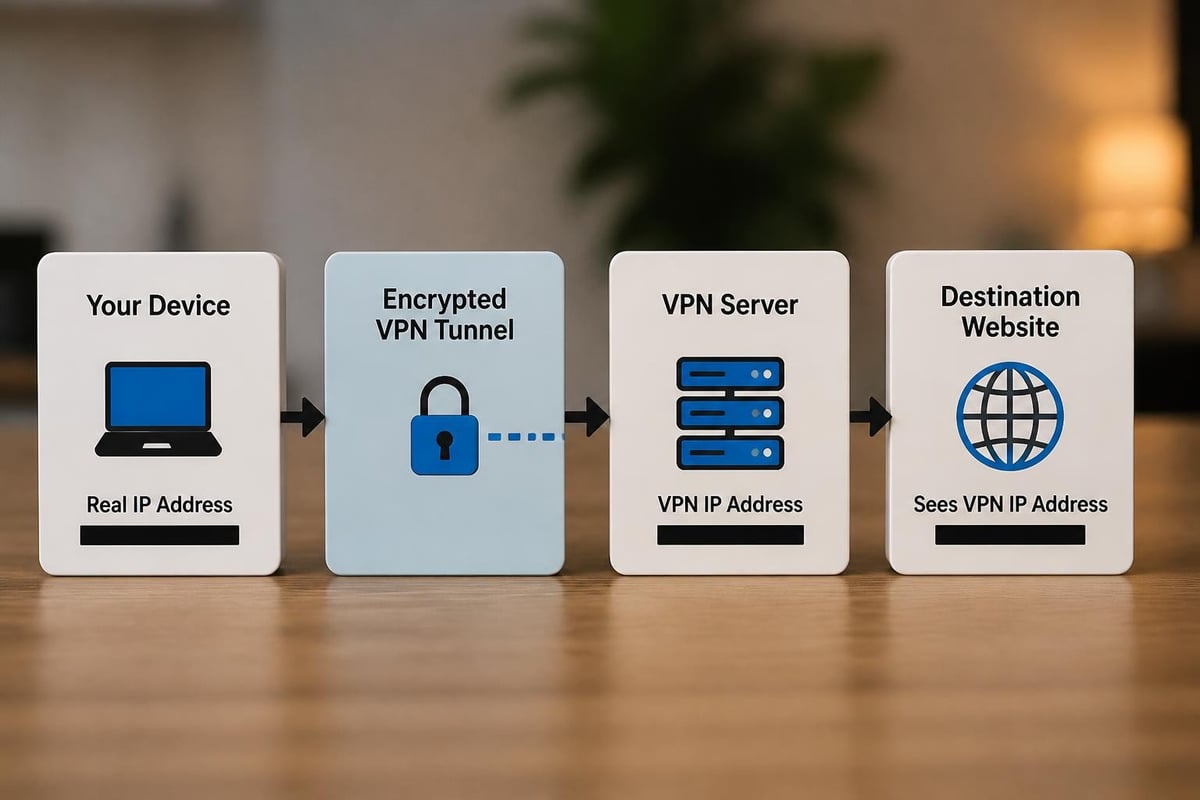
Modern VPN services like ZioFree offer military-grade encryption protocols that prevent ISPs, network administrators, and potential attackers from monitoring your traffic. The strict no-logs policy ensures that even the VPN provider cannot link your activity to your identity.
Choosing the Right VPN for IP Masking
Not all VPNs provide equal protection. When selecting a VPN service, prioritize these features:
| Feature | Why It Matters | What to Look For |
|---|---|---|
| Encryption Standard | Prevents traffic inspection | AES-256 or equivalent |
| No-logs Policy | Ensures privacy | Independently audited claims |
| DNS Leak Protection | Prevents IP exposure | Built-in DNS routing |
| Kill Switch | Blocks traffic if VPN drops | Automatic connection monitoring |
| Server Network | Provides location options | 50+ countries minimum |
Research has shown that VPN implementations can leak information through IPv6, DNS, or WebRTC vulnerabilities. Choose providers that actively mitigate these risks through comprehensive leak protection.
Installing and Configuring a VPN on Windows
Setting up a VPN on your PC takes just minutes. Most providers offer dedicated Windows applications that simplify the process:
- Download the VPN client from your provider's official website
- Install the application using the standard Windows installer
- Launch the VPN client and sign in with your credentials
- Select a server location based on your privacy or access needs
- Connect and verify your IP address has changed
After connecting, visit an IP checker website to confirm your visible IP address matches the VPN server location. Consider exploring Windows privacy settings to complement your VPN protection with system-level controls.
Method 2: The Tor Browser for Maximum Anonymity
For users requiring the highest level of anonymity, the Tor Browser offers unparalleled IP address protection. Tor routes your traffic through multiple volunteer-operated relays, making it extremely difficult to trace activity back to your original IP address.
The Electronic Frontier Foundation provides an excellent practical guide on using Tor safely, emphasizing both the strengths and limitations of this approach. The Tor network's design distributes trust across multiple nodes, ensuring no single relay can connect your identity to your destination.
When to Use Tor Instead of a VPN
Tor excels in specific scenarios where maximum anonymity outweighs speed considerations:
- Whistleblowing or sensitive journalism
- Political activism in restrictive environments
- Research on sensitive topics
- Accessing censored information
However, Tor's multi-hop routing significantly reduces connection speeds. For everyday browsing and streaming, a fast VPN service provides better performance while still hiding your IP address on PC.
Setting Up Tor Browser on Windows
The Tor Browser functions as a modified version of Firefox configured for anonymous browsing:
- Download Tor Browser from the official Tor Project website
- Run the installer and choose your installation directory
- Launch Tor Browser (it will connect to the Tor network automatically)
- Wait for the "Connected to Tor" confirmation
- Browse with enhanced anonymity
Never install additional browser extensions or modify Tor Browser's default configuration, as these changes can compromise your anonymity. Remember that Tor only protects traffic within the Tor Browser-other applications continue using your regular connection.
Method 3: Proxy Servers and Their Limitations
Proxy servers offer a simpler alternative to hide your IP address on PC, routing your traffic through an intermediary server. While less comprehensive than VPNs, proxies can be useful for specific applications.
Free proxies typically lack encryption, meaning your ISP and network administrators can still monitor your activity. Additionally, many proxy services log user data extensively, defeating the privacy purpose of hiding your IP address.
Types of Proxies for Different Use Cases
HTTP/HTTPS Proxies work at the application level, typically configured within your browser. They're suitable for basic web browsing but don't protect other applications.
SOCKS Proxies operate at a lower network level, supporting various types of traffic including email and file transfers. SOCKS5 proxies offer better performance and compatibility than older versions.
Web Proxies require no configuration-simply visit the proxy website and enter your destination URL. However, they often inject advertisements and provide minimal security.
| Proxy Type | Encryption | Speed | Use Case |
|---|---|---|---|
| HTTP/HTTPS | Limited | Fast | Basic browsing |
| SOCKS5 | None | Very Fast | Torrenting, gaming |
| Web Proxy | Minimal | Moderate | Quick IP changes |
| Elite Proxy | Varies | Moderate | Advanced anonymity |
For comprehensive protection, secure VPN solutions vastly outperform proxy configurations by encrypting all traffic and protecting your entire system.
Advanced Techniques to Prevent IP Leaks
Even when using VPNs or other privacy tools, several vulnerabilities can expose your real IP address. Addressing these leak vectors ensures complete protection.

WebRTC Leak Prevention
WebRTC enables real-time communication in browsers but can bypass VPN protection and expose your IP address. Modern browsers implement WebRTC without user awareness, creating a significant privacy risk.
Disable WebRTC in your browser through these methods:
- Firefox: Type
about:configin the address bar, search formedia.peerconnection.enabled, and set tofalse - Chrome: Install a WebRTC leak prevention extension from the Chrome Web Store
- Edge: Use browser extensions, as native disabling isn't available
Test for WebRTC leaks using online checking tools even when connected to your VPN. Many top VPN providers include WebRTC leak protection in their applications.
DNS Leak Protection Strategies
DNS (Domain Name System) requests translate website names into IP addresses. If these requests bypass your VPN tunnel and reach your ISP's DNS servers, they reveal the websites you're visiting along with your real IP address.
Configure custom DNS servers to prevent leaks:
- Open Network and Sharing Center in Windows
- Click on your active connection
- Select Properties, then Internet Protocol Version 4
- Choose "Use the following DNS server addresses"
- Enter privacy-focused DNS servers (1.1.1.1 or 9.9.9.9)
Quality VPN services automatically route DNS requests through encrypted tunnels, eliminating this vulnerability. Verify your DNS settings after connecting to ensure requests aren't leaking to your ISP.
IPv6 Leak Mitigation
Many ISPs now provide IPv6 connectivity alongside traditional IPv4. If your VPN doesn't support IPv6, traffic using the newer protocol can bypass the VPN tunnel entirely, exposing your real IP address.
The simplest solution involves disabling IPv6 on Windows:
- Open Network Connections
- Right-click your network adapter
- Select Properties
- Uncheck "Internet Protocol Version 6 (TCP/IPv6)"
- Click OK and restart your connection
Alternatively, choose a VPN provider offering full IPv6 support and routing. Research indicates that IPv6 represents a significant leak vector in many VPN configurations, making this protection essential.
Network-Level IP Masking with NAT
For users wanting to protect multiple devices, Network Address Translation (NAT) provides a foundational layer of IP address hiding. NAT operates at your router level, as described in IETF documentation on NAT behavior, translating private network addresses to a single public IP.
While NAT doesn't provide the anonymity of a VPN-your ISP still sees your public IP-it prevents external parties from directly identifying individual devices on your home network. This creates a basic privacy barrier but shouldn't be considered a complete solution to hide your IP address on PC.
Setting Up NAT on Your Home Router
Most home routers enable NAT by default. To verify and configure NAT settings:
- Access your router's admin panel (typically 192.168.1.1 or 192.168.0.1)
- Log in with your administrator credentials
- Navigate to the WAN or Internet connection settings
- Confirm NAT is enabled (may be labeled as "NAT," "PAT," or "IP Masquerading")
- Save any changes and reboot the router if necessary
NAT complements other privacy tools but cannot replace comprehensive solutions like VPNs. Understanding how NAT hides internal addresses helps contextualize its role in network security architecture.
Testing Your IP Address Protection
After implementing any method to hide your IP address on PC, verification ensures your protection works correctly. Multiple testing approaches confirm different aspects of your privacy configuration.
Essential IP Leak Tests
Visit specialized testing websites to check for common vulnerabilities:
- Standard IP check: Confirms your visible IP differs from your real one
- DNS leak test: Verifies DNS requests route through your privacy tool
- WebRTC leak test: Ensures browser-based technologies don't expose your IP
- IPv6 leak test: Confirms IPv6 traffic doesn't bypass protection
Run these tests before and after connecting to your VPN or proxy. Document the results to establish a baseline and identify any configuration issues.
Continuous Monitoring and Maintenance
IP protection isn't a one-time setup. Regular maintenance ensures ongoing privacy:
- Update your VPN client or Tor Browser monthly
- Retest for leaks after system updates
- Monitor kill switch functionality
- Review privacy practices periodically
- Verify your VPN provider's no-logs policy remains current
Consider setting quarterly reminders to review your privacy configuration and test for leaks. Cyber threats evolve constantly, requiring corresponding updates to your defensive measures.

Combining Methods for Layered Protection
Advanced users often combine multiple techniques to hide their IP address on PC, creating redundant layers of protection. While this approach increases complexity, it significantly enhances privacy against sophisticated adversaries.
VPN Over Tor Configuration
Connecting to a VPN before routing through Tor provides both benefits: the VPN hides Tor usage from your ISP, while Tor adds additional anonymity layers. This configuration requires careful setup:
- Configure your VPN to connect automatically at startup
- Verify the VPN connection is stable and leak-free
- Launch Tor Browser only after VPN connects
- Test to ensure both protections remain active
This approach trades speed for maximum privacy. Use it only when the security benefits justify the significant performance reduction.
Proxy Chains and Multi-Hop VPNs
Some scenarios benefit from routing traffic through multiple servers in different jurisdictions. Multi-hop VPNs (also called double VPN) route your traffic through two VPN servers in sequence, making traffic correlation extremely difficult.
Quality providers offering private internet VPN solutions increasingly include multi-hop configurations in their service offerings. This feature particularly benefits users in high-risk environments where single-point failures could compromise privacy.
Choosing the Right Approach for Your Needs
The best method to hide your IP address on PC depends on your specific threat model, technical expertise, and performance requirements. Consider these decision factors:
For everyday privacy: A reputable VPN service provides the optimal balance of security, speed, and ease of use. Services offering affordable pricing make this protection accessible to all users.
For maximum anonymity: Tor Browser delivers the strongest IP hiding when anonymity outweighs performance. Combine with a VPN for additional protection against traffic analysis.
For specific applications: Proxies work well for isolated use cases but should never replace comprehensive VPN protection for regular browsing.
For whole-network protection: Configure your router with VPN support to protect all connected devices simultaneously, though this requires more technical knowledge.
Evaluate your requirements honestly. Most users benefit most from a fast, reliable VPN that provides robust protection without complexity.
Common Mistakes That Compromise IP Protection
Even with privacy tools installed, user errors can expose your real IP address. Avoiding these mistakes ensures your protection remains effective:
Forgetting to connect: The best VPN provides zero protection when not activated. Enable auto-connect features to prevent accidental exposure.
Using free services without vetting: Many free VPNs log extensive data and sell user information to third parties. Research providers thoroughly or invest in trusted paid services.
Ignoring application-level leaks: System-level VPNs protect most traffic, but some applications use custom networking that bypasses VPN tunnels. Configure split tunneling carefully or use application-specific proxies.
Maintaining logged-in sessions: Logging into personal accounts while using a different IP address creates correlation points. Use VPN-protected browsing consistently for sensitive activities.
Neglecting mobile devices: Many users protect their PC while forgetting that smartphones and tablets also leak IP addresses. Implement consistent privacy practices across all devices.
Understanding these pitfalls helps maintain robust protection over time. Regular audits of your privacy configuration identify potential weaknesses before they're exploited.
Protecting your IP address on PC requires selecting the right tools, configuring them properly, and maintaining vigilance against leaks. Whether you choose VPNs for comprehensive protection, Tor for maximum anonymity, or layered approaches for enhanced security, consistent application of these techniques safeguards your privacy against tracking, surveillance, and targeted attacks. ZioFree delivers high-speed VPN service with military-grade encryption, a strict no-logs policy, and protection against sophisticated threats-giving you complete confidence that your IP address and online activities remain private and secure.