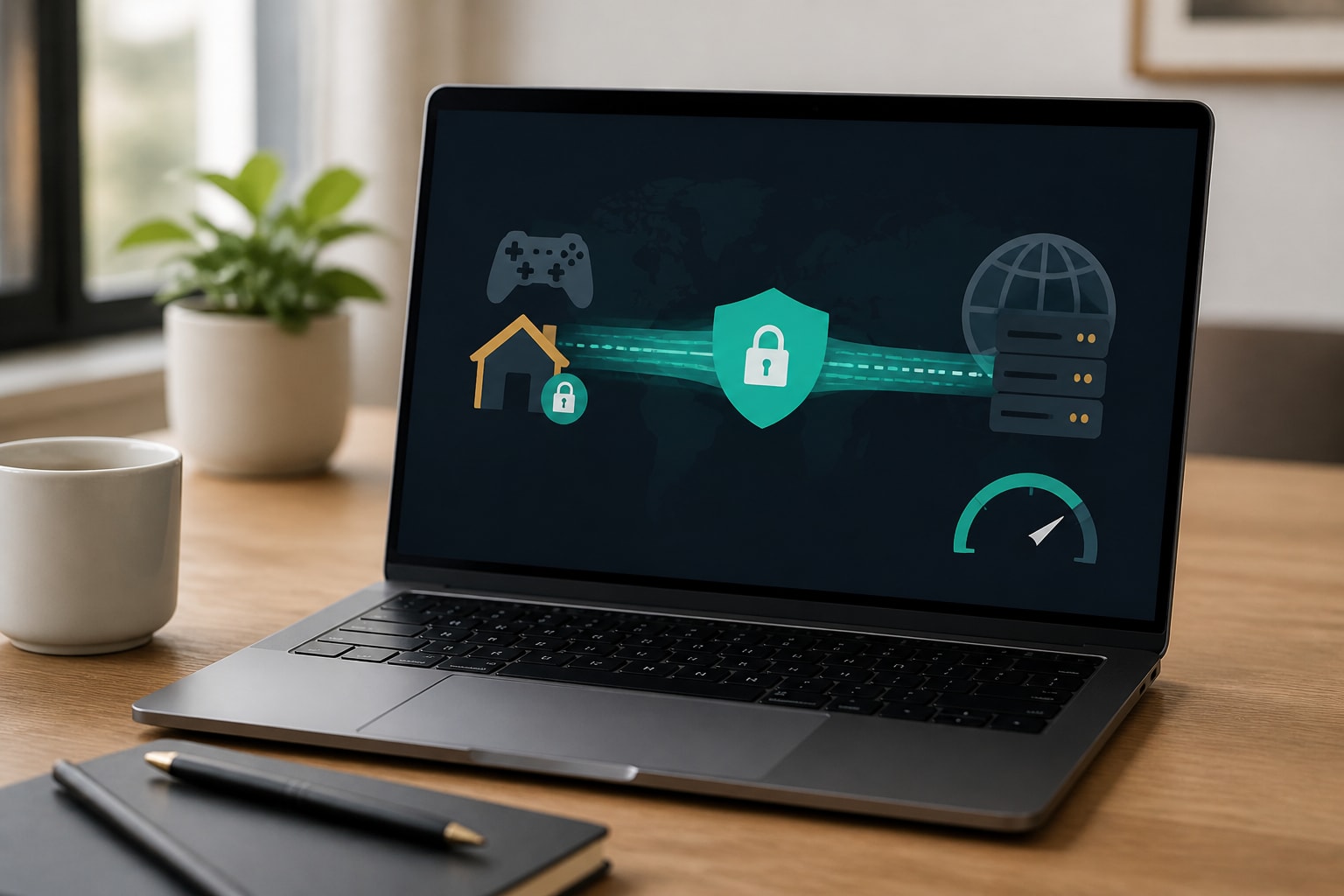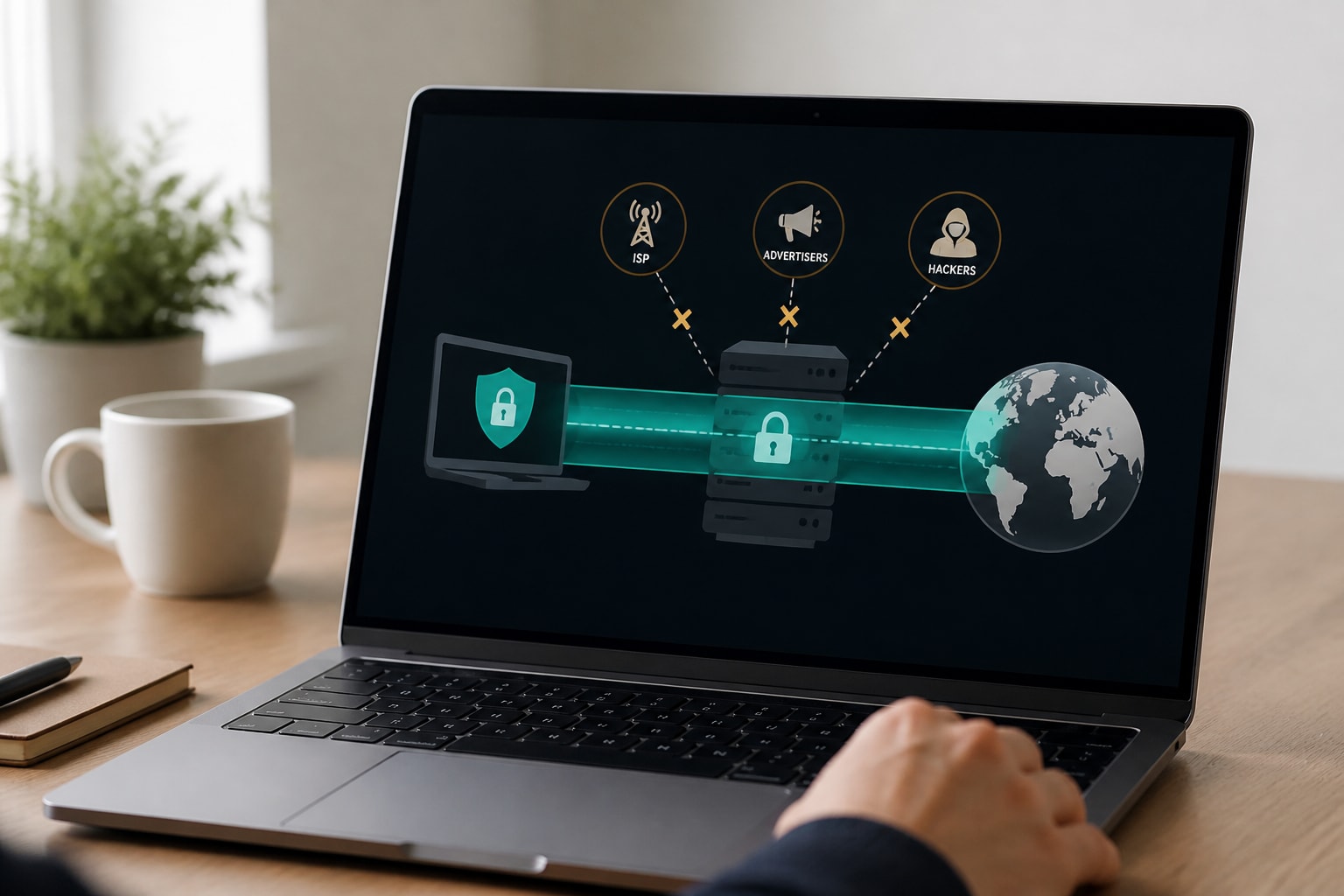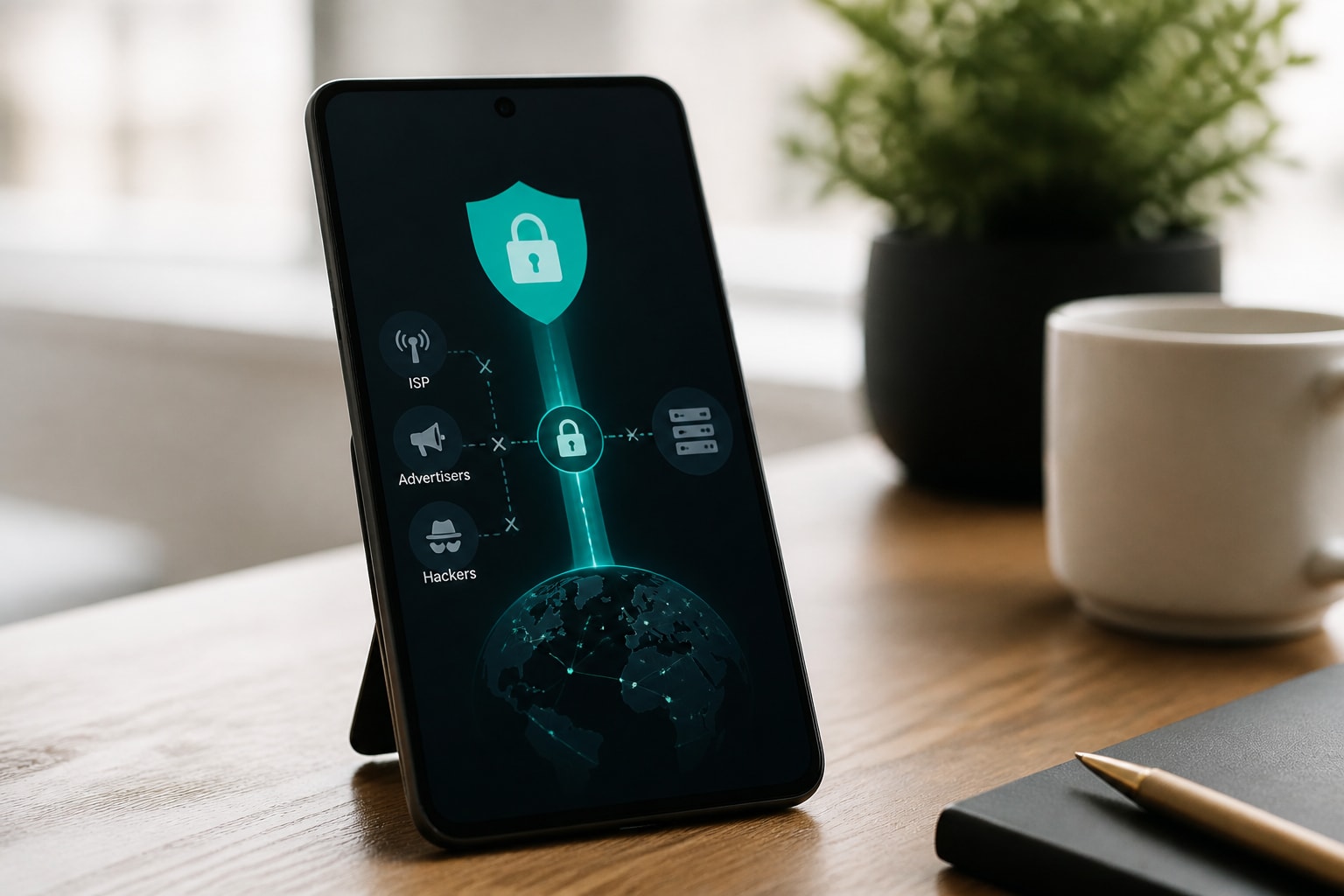




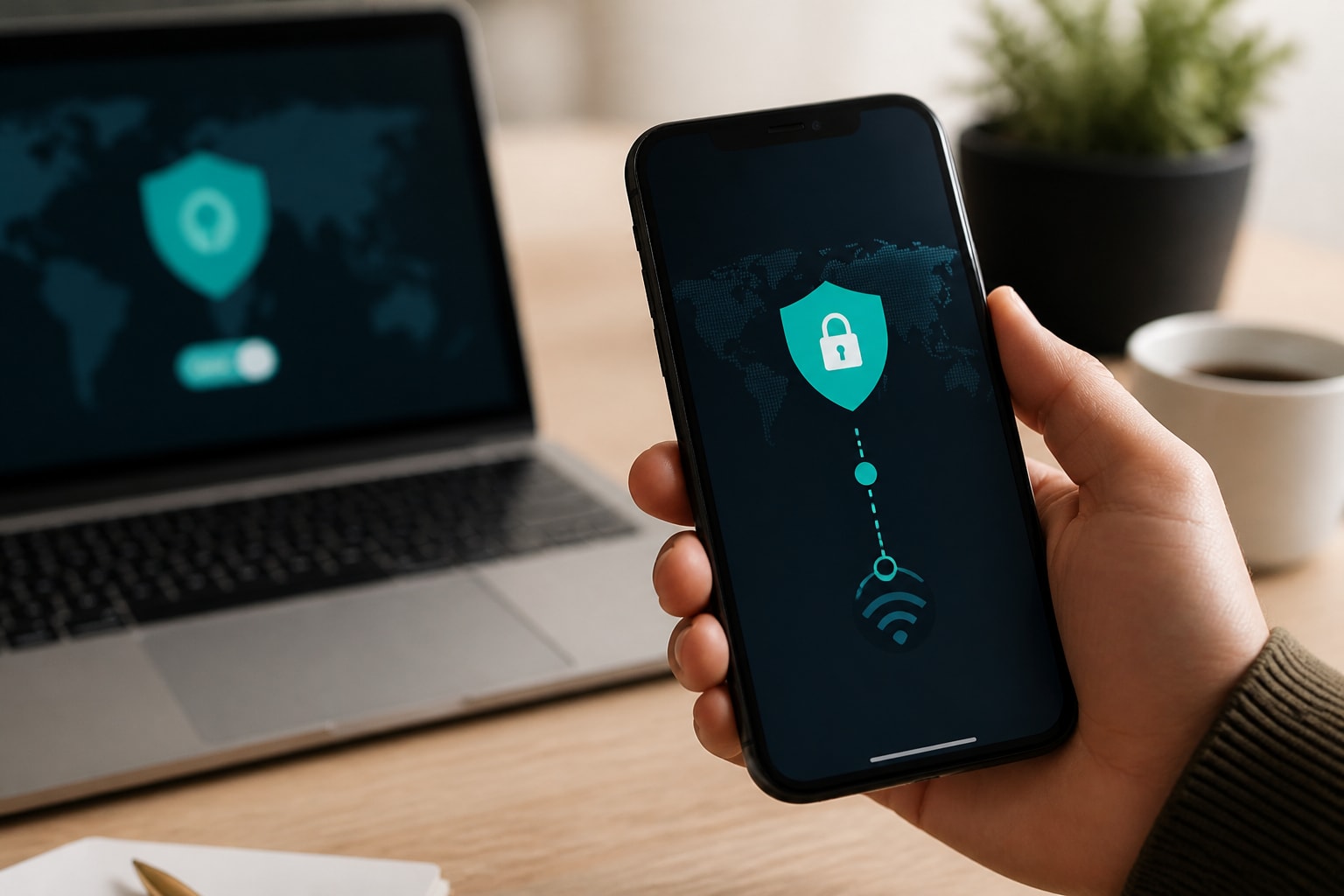
A VPN on mobile phones encrypts the traffic leaving your device and routes it through a remote server, which hides your browsing from your internet provider, advertisers and anyone watching a shared network. Using one safely depends on more than installing an app: you need the right settings, a trustworthy provider and a few habits that keep the protection from failing silently. This guide walks through each step, from the basics to confident daily use on both Android and iPhone.
What does a VPN actually do on a phone?
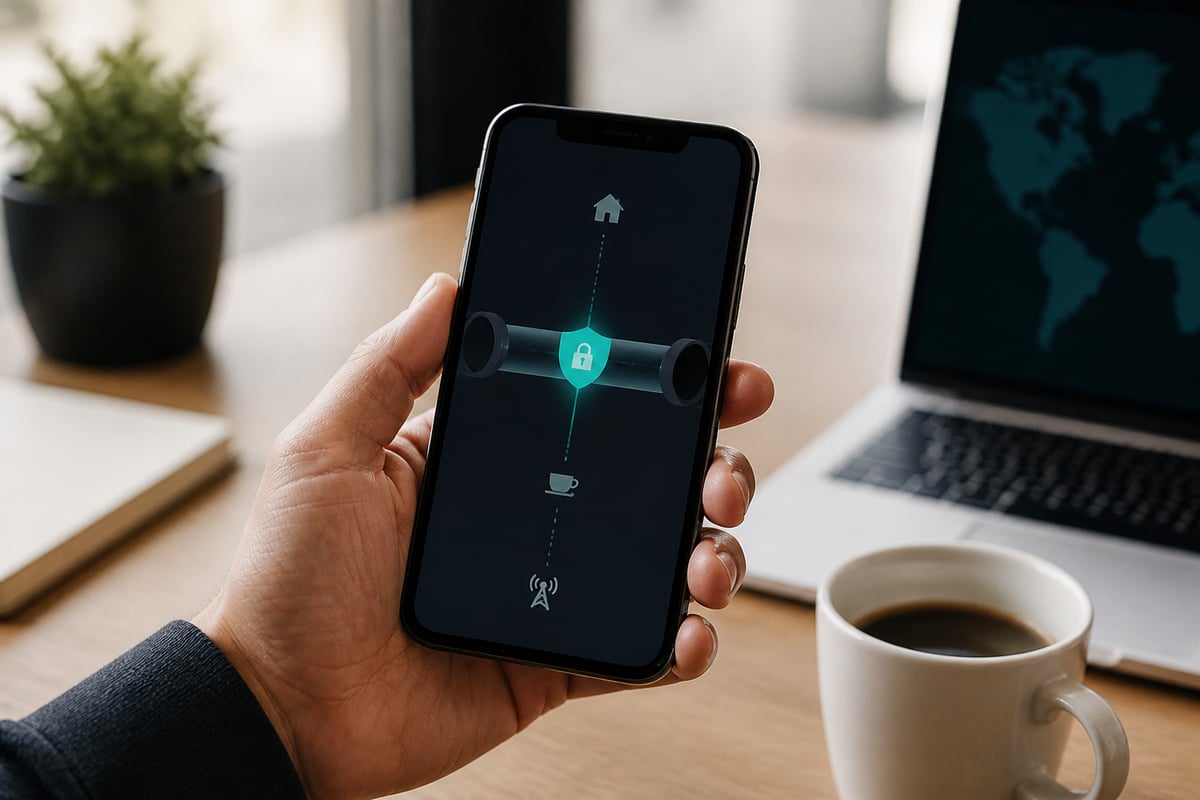
A VPN creates an encrypted tunnel between your phone and a VPN server, so your internet provider and local network see scrambled data instead of the sites and apps you use. Your visible IP address becomes the server's address rather than your own, which makes it harder for advertisers and websites to tie activity to your location and identity.
Phones are a particularly good fit for this protection. They switch constantly between home Wi-Fi, mobile data, cafe hotspots and hotel networks, and every one of those connections is a place where traffic can be observed. An app on a phone can also leak data in the background without you opening anything.
A VPN does not make you anonymous or fix a compromised device. It protects the connection, not your behavior. If you sign into an account, that service still knows who you are. For a broader primer, ZioFree's explainer on what a VPN is and why you need one in 2026 covers the fundamentals.
Can I put a VPN on my phone?
Yes, you can install a VPN on virtually any modern smartphone, and both Android and iOS support it natively. You have two routes: a provider's app, which is the simplest option, or a manual configuration built into the operating system's settings.
Google's own help documentation notes that Pixel 7 and later phones and Pixel Tablet have access to Google's built-in VPN in countries where it is available. On iPhone, Apple states that iPhone and iPad support L2TP, IKEv2 and IPSec VPN connections, which you can configure in Settings. For most privacy-conscious users, a dedicated app is easier to maintain and offers features the manual route lacks, such as a kill switch and automatic server selection.
If you want to understand what happens when you add a profile on an iPhone, this explanation of iPhone VPN configuration breaks it down.
What should you look for before installing a VPN app?
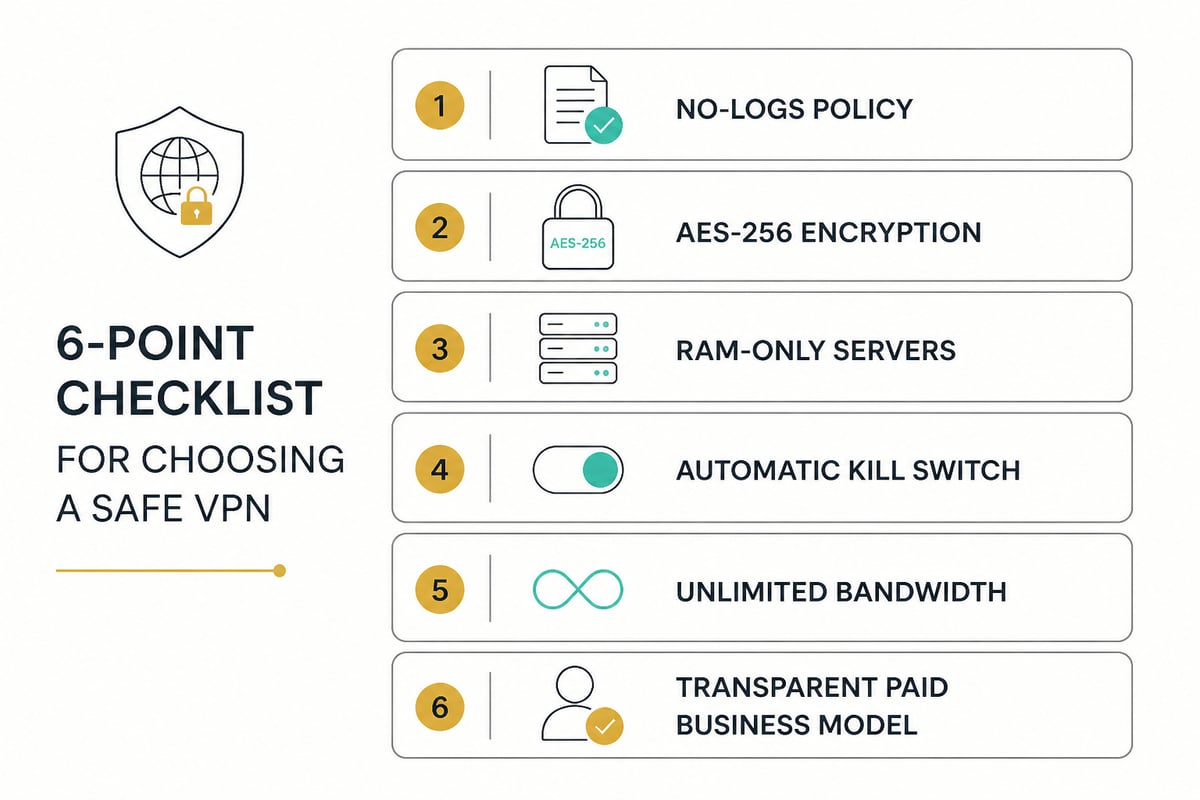
Choose a provider that publishes a clear no-logs policy, uses strong encryption, offers a kill switch and does not cap your data. These four checks screen out most unsafe options before you install anything.
Use this checklist:
- A genuine no-logs policy. The provider should state plainly that it does not record browsing activity, DNS queries, connection timestamps or IP addresses. Learn how to judge these claims in this piece on no-log VPNs.
- Modern encryption. AES-256 is the standard for strong protection of VPN traffic.
- RAM-only servers. Servers that never write data to disk and wipe everything on reboot reduce what could ever be exposed.
- A kill switch. This cuts your connection if the VPN drops, so traffic never falls back to the open network.
- No bandwidth limits. Caps push people to switch the VPN off mid-month, which defeats the purpose.
- Clear business model. Be cautious with anything that costs nothing, since the product has to be funded somehow, and that is often by selling or exposing your data.
That last point matters for safety. Free VPN apps are a common source of tracking and weak encryption, so a paid service with a stated privacy policy is the safer foundation. ZioFree is a paid service and is not aimed at readers looking for a free option.
How do you set up a VPN on Android and iPhone?
Setup takes a few minutes on either platform: install the provider's app from the official store, sign in, grant the VPN permission and connect to a server. The details differ slightly by operating system.
Setting up on Android
- Download the app from Google Play and sign in with your account.
- Tap connect and approve the system prompt that asks to add a VPN connection.
- Open Settings, then Network and internet, then VPN, and tap the gear icon next to your VPN.
- Turn on Always-on VPN, and consider enabling the option that blocks connections without the VPN.
Google explains that with Always-on VPN enabled, Android displays a notification if the connection stops working until you reconnect or disable the setting. That alert is a useful early warning that your traffic is no longer protected.
Setting up on iPhone
- Install the app from the App Store and sign in.
- Allow the app to add VPN configurations when iOS asks, and confirm with Face ID or your passcode.
- Choose a server and connect. A VPN icon appears in the status bar when the tunnel is active.
- If your app supports it, enable on-demand or automatic connection so the VPN starts when you join an untrusted network.
Our guide to the best phone VPN for iPhone goes deeper on iOS-specific options. If you ever need to undo a setup, there are steps for removing a VPN from an iPhone and for removing a VPN on Android.
How can I set up a free VPN on my iPhone without using any apps?
You can add a VPN profile manually through Settings, General, VPN & Device Management, using connection details such as server address, remote ID and credentials supplied by a VPN provider or your employer. No app is required for this, but you still need a server to connect to, and those details come from a service you trust.
This route supports the IKEv2, IPSec and L2TP protocols Apple documents, though it lacks the conveniences of a full app. There is typically no kill switch, no server list and no automatic reconnection, so a dropped connection can go unnoticed. For a privacy-focused user, the manual method suits a single fixed server better than daily travel use.
Be wary of anyone offering free connection details. Entering credentials from an unknown source hands your traffic to a stranger. A safe approach is to use details from a provider with a published no-logs policy, which is why many people prefer the app.
Which settings keep a mobile VPN safe?
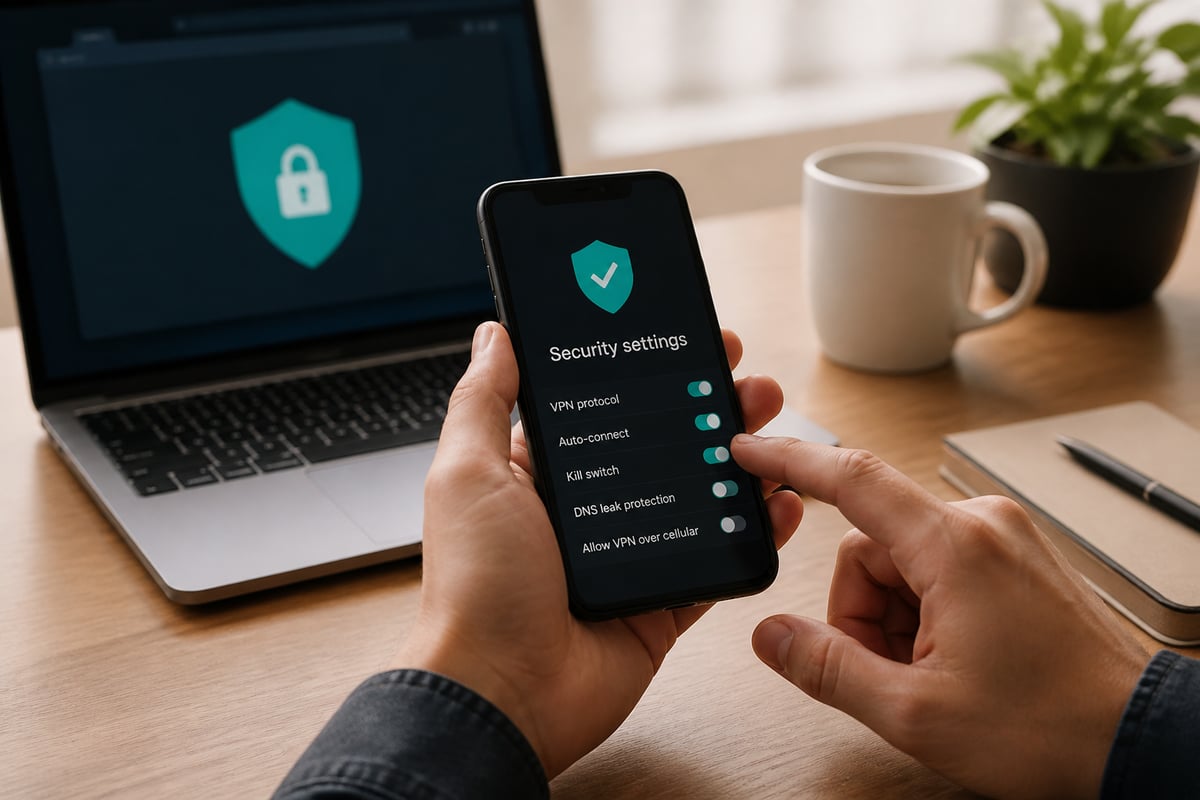
Four settings do most of the safety work: the kill switch, always-on connection, a modern protocol and DNS leak protection. Configure them once and your VPN on mobile phones stays protected without constant attention.
| Setting | What it does | Why it matters on a phone |
|---|---|---|
| Kill switch | Blocks traffic if the VPN drops | Prevents exposure when you move between Wi-Fi and mobile data |
| Always-on / auto-connect | Reconnects automatically | Covers you from the moment you join any network |
| Protocol choice | Sets how the tunnel is built | Modern options balance speed and security |
| Split tunnelling | Sends only chosen apps through the VPN | Lets banking or local apps bypass it when needed |
ZioFree includes an automatic kill switch and split tunnelling, so you can route only selected apps through the VPN if a particular service blocks VPN traffic.
One more step is easy to forget: confirm that the VPN is working. After connecting, visit an IP-checking site and verify that the address shown is not your real one. Repeat the check after switching networks.
When should you turn the VPN on?
Turn it on whenever you join a network you do not control, and leave it on by default if you want your provider and advertisers kept out of your browsing at all times. Public networks carry the clearest risk, since anyone sharing the connection can attempt to intercept traffic.
Situations where a VPN earns its place:
- Airports, cafes, hotels and libraries with open Wi-Fi
- Checking email or accounts while traveling
- Using messaging and social apps on networks you cannot verify
- Browsing at home when you do not want your internet provider building a profile of your activity
For a closer look at open networks, read about the dangers of public Wi-Fi and how a VPN protects you on public Wi-Fi.
Does a VPN drain your battery?
A VPN does use some extra battery, because the phone must encrypt and decrypt every packet and keep a tunnel open, but on a modern device the difference is usually modest. Heavier use, such as streaming or large downloads over a distant server, increases the cost.
You can limit the impact in practical ways:
- Pick a nearby server, which reduces latency and processing overhead.
- Use a lightweight, modern protocol rather than an older one.
- Keep the app updated, since developers regularly improve efficiency.
- Use split tunnelling so only the apps that need protection go through the tunnel.
Speed and battery are linked: a slow, congested server keeps radios active longer. Choosing a fast VPN tends to help both.
How do you avoid common mobile VPN mistakes?
Most failures come from small oversights rather than from the technology. Avoiding the following habits keeps your protection reliable:
- Trusting a free app without checking its policy. Unclear ownership and vague privacy terms are red flags.
- Leaving the kill switch off. A silent drop sends traffic over the open network.
- Forgetting to reconnect after a reboot or network change. Auto-connect solves this.
- Assuming the VPN replaces good hygiene. Strong passwords, two-factor authentication and timely system updates still matter.
- Installing apps from outside the official stores. Sideloaded VPN apps can carry malware.
- Ignoring permission prompts. Approve only the VPN permission the system asks for, and review any extra access an app requests.
A VPN also does not equal private browsing mode. Incognito only stops your phone from saving history locally, while your provider and the sites you visit still see your traffic. This comparison of VPN vs. incognito mode explains the gap.
How does ZioFree fit a privacy-first mobile setup?
For readers who want a paid, privacy-focused option, ZioFree VPN Monthly offers unlimited bandwidth and access to all servers. It pairs AES-256 encryption with RAM-only servers, an automatic kill switch and split tunnelling, and its no-logs policy covers browsing activity, traffic data, DNS queries, connection timestamps and IP addresses. Those features map directly onto the safety checklist above.
ZioFree's current offerings are described for phones here, so readers using other platforms should check what is available before subscribing. For phones, the app approach covers the safety settings discussed throughout this guide.
FAQ
How to use ultralink VPN?
Setup for any VPN app follows the same pattern: install it from the official app store, sign in, approve the VPN permission and tap connect. Check the provider's own help pages for app-specific options, and confirm its privacy policy before relying on it.
Can a VPN protect me on mobile data as well as Wi-Fi?
Yes. A VPN encrypts traffic over any connection, including cellular data, which stops your mobile carrier from seeing the sites you visit. Enabling always-on or auto-connect ensures protection continues as your phone moves between networks.
Will a VPN slow down my phone's connection?
Some slowdown is normal because traffic takes an extra hop and is encrypted. Connecting to a nearby server and using a modern protocol keeps the difference small for everyday browsing and messaging.
Start by enabling the kill switch and always-on setting in whichever VPN app you use, then confirm your IP address changes when you connect. If you want a paid service built around a strict no-logs policy, ZioFree VPN Monthly gives your phone unlimited bandwidth and access to every server. Get started now with ZioFree and put your phone's traffic behind strong encryption today.